A quick post of how to setup management pack for Orchestrator in Operations.

Prerequistes
- Make sure you have Advanced or Enterprise license applied in vROps. Standard will not allow you to add vRO integration.
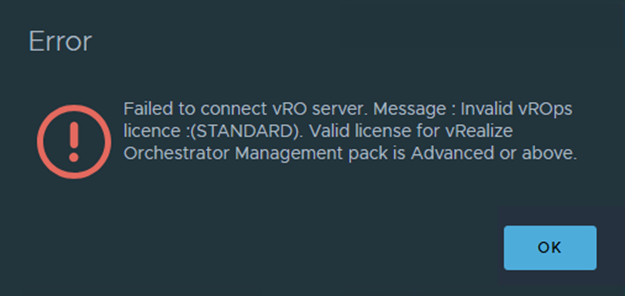
- Enable Basic Authentication in Orchestrator using SSH. This will restart the services in Orchestrator. Steps here
vracli vro properties set -k com.vmware.o11n.sso.basic-authentication.enabled -v true- The account used to setup vRO connection in management pack must be an Orchestrator Administrator. Go to Aria Automation > IDENTITY & ACCESS MANAGEMENT > Active Users and search for the account and assign relevant roles.

Steps for Installation
- Download vRO Management Pack (3.x or later) from https://vcf.broadcom.com/vsc/services/details/management-pack-for-vrealize-orchestrator?slug=true

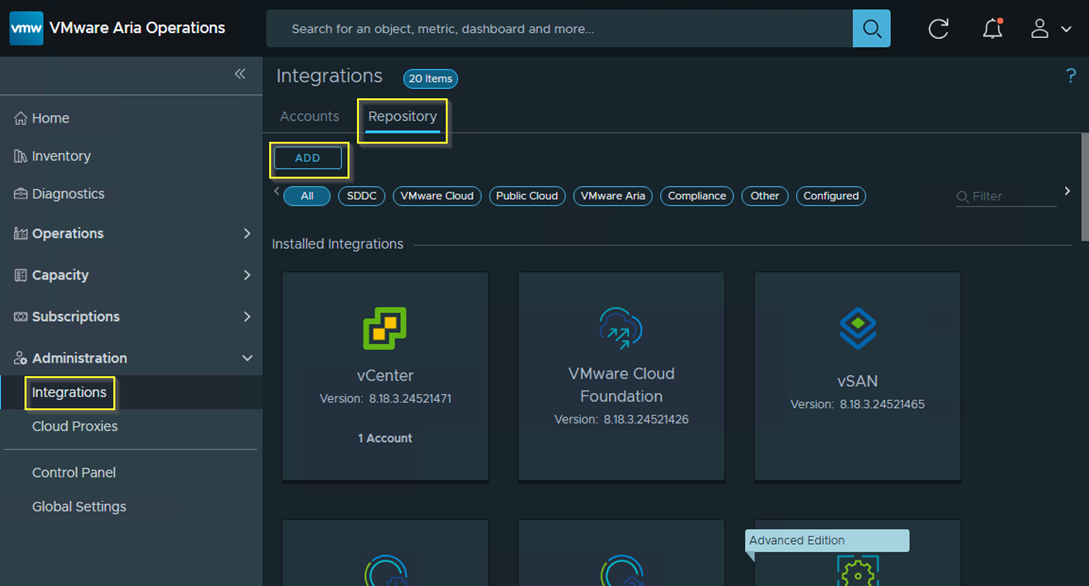
- In Operations, Go to Integrations -> Repository and click Add.
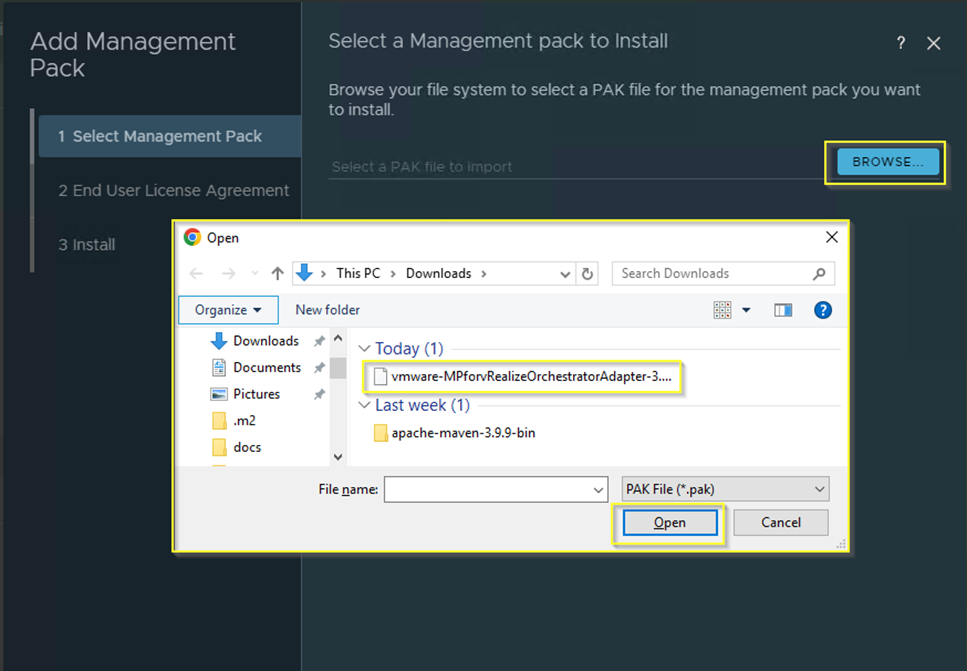
- Click Browse and select the downloaded management pack file (.pak).
- Wait for it to upload and check the tickboxes and click Next.
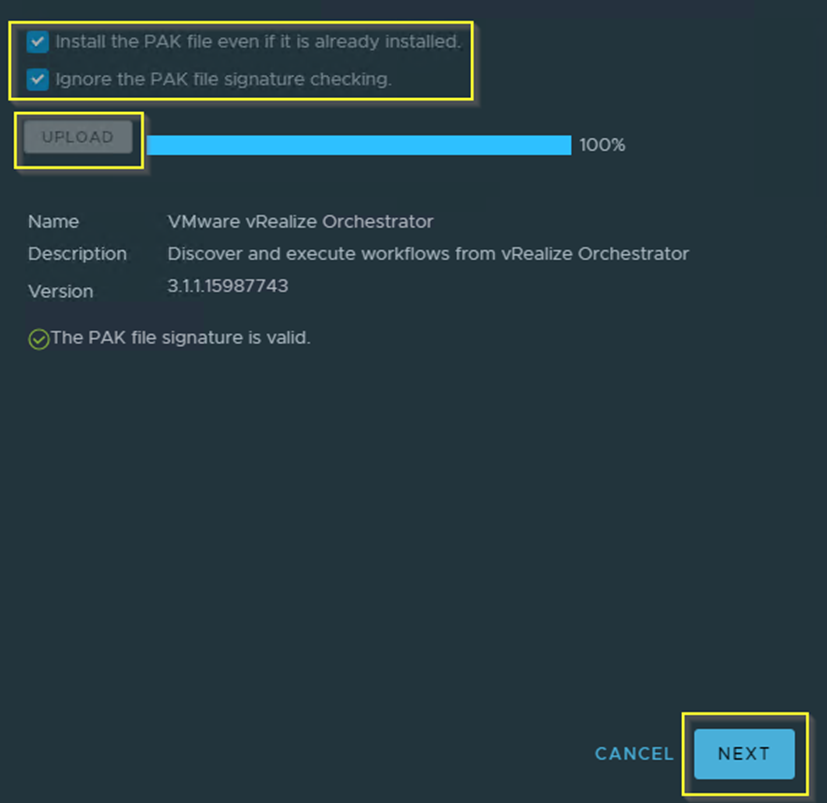
- Click Next -> Accept End User License Agreement.
- Click Next -> Check Install Details -> Click Finish.
- The VMware vRealize Orchestrator pack should be visible there. Click it.
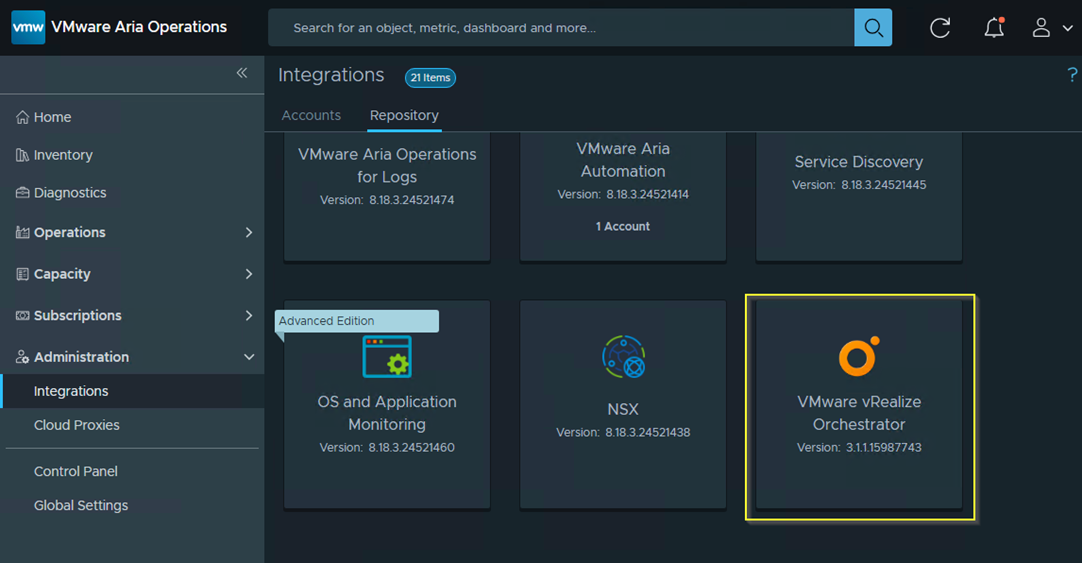
- Click Add Account.
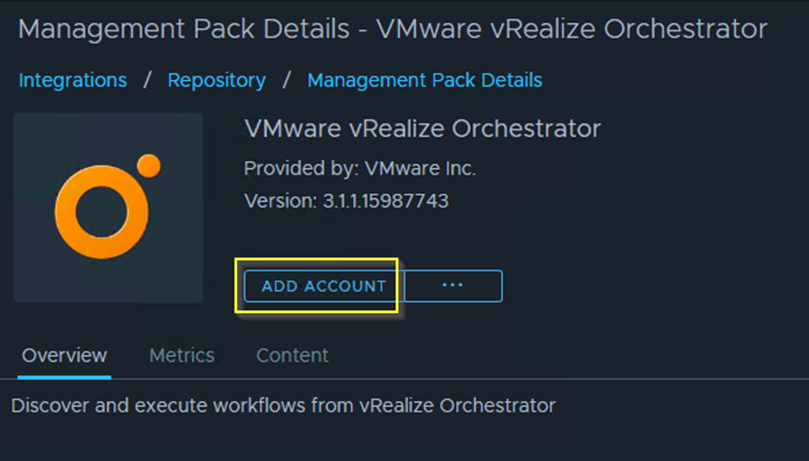
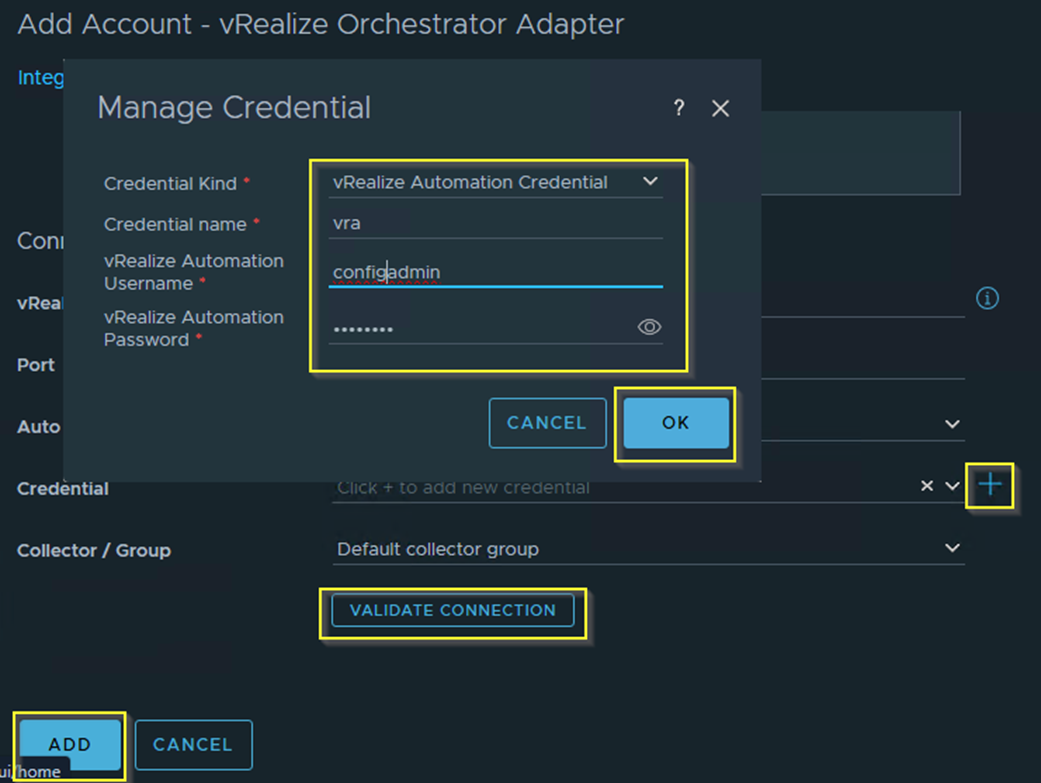
- Fill in the details like name, FQDN and port.
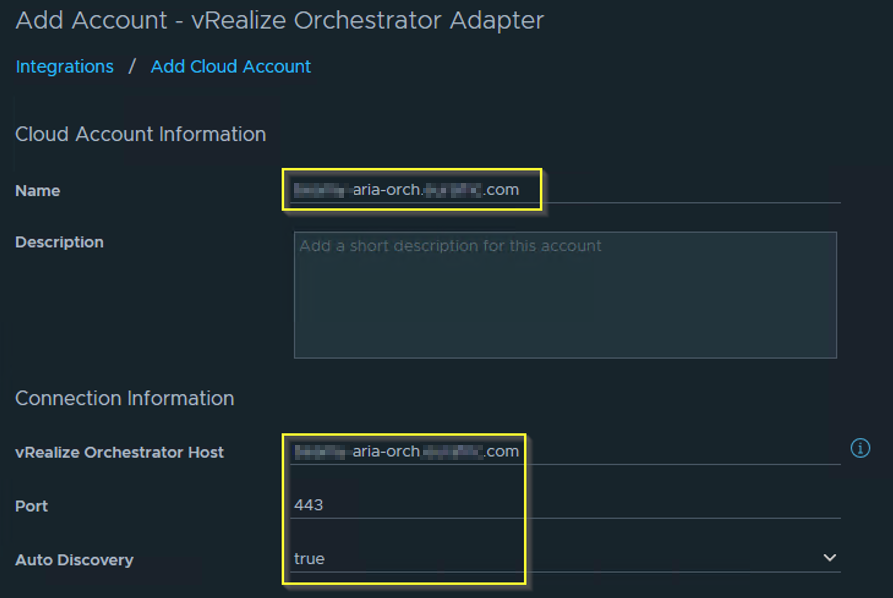
- for Credential, click on + symbol and select vRealize Automation Credential and put name, username and password.
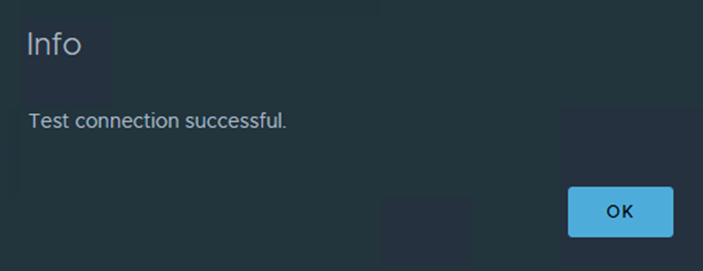
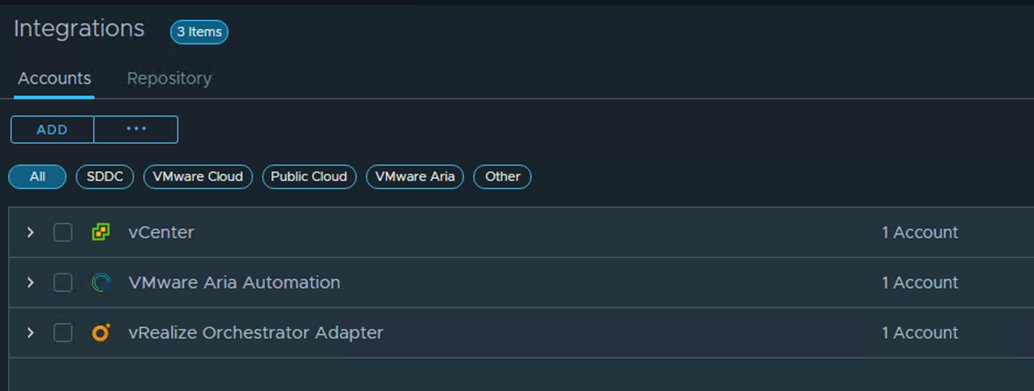
- If the prerequisites are fulfilled, you should see success message.
Discover more from Cloud Blogger
Subscribe to get the latest posts sent to your email.