

In this article, we will explore the process of integrating MS Teams Channels using Orchestrator workflows. The method is simple and direct. We will utilize the Webhook URL to transmit data via a REST call. We will also do a straightforward illustration.
Prior to commencing, it is essential to be capable of generating a Webhook URL for your channel. You can familiarize yourself with the process of creating one by referring to the official link.
Once the URL is obtained, the subsequent step involves making a POST call to it with a JSON payload and setting the Content-Type as application/json.
Here is the script that we will be using.
try{
    var method = "POST";
    var uri = webhookUrl;
    System.log("URL to hit: "+uri);
    var requestContentType = "application/json"

    var restHost = RESTHostManager.createHost("dynamicRequest");
    restHost.operationTimeout = 600;
    httpRestHost = RESTHostManager.createTransientHostFrom(restHost);
    httpRestHost.url = uri;

    //var webhookBody = {"text":"Test from Orchestrator"}//Basic payload
    var request = httpRestHost.createRequest(method, uri, webhookBody);
    request.contentType = requestContentType;

    // Execute REST Request
    System.log("Executing REST request...");
    var response = request.execute();
    System.log(method+" operation completed");

    statusCodeAttribute = response.statusCode;
    System.log("REST Response Status Code: " + statusCodeAttribute);
    System.log("REST Response body: " + response.contentAsString);
    if(statusCodeAttribute == "200")
        "Channel notified successfully";
}
catch(e){
    throw "Operation failed. Reason: "+e;
}Now, Tricky part is to form the JSON payload. We will be using MS Teams Message Card which is best for showing general information. Here is an example of sharing information on long running workflows like its name, start date, id and tokenId.
{
	"@type": "MessageCard",
	"@context": "http://schema.org/extensions",
	"themeColor": "0076D7",
	"summary": "A Long Running Workflow",
	"sections": [{
		"activityTitle": "A Long Running Workflow",
		"activitySubtitle": "On Orchestrator "+vroName,
		"activityImage": "https://cloudblogger.co.in/wp-content/uploads/2021/11/cropped-vro_logo-removebg-preview.png",
		"facts": [{
			"name": "Name",
			"value": prop.name
		}, {
			"name": "Start date",
			"value": prop.startDate
		}, {
			"name": "Workflow Id",
			"value": prop.workflowId
		}, {
			"name": "Token Id",
			"value": prop.workflowTokenId
		}],
		"markdown": true
	}]
}In this JSON, you can update summary and sections as per your requirement. Rest of it can be used as it is.
Demo
In this demo, we will trigger channel alerts for all the workflows running for more than 3 hours.
- Download the package from this link
- Create a Channel in MS Teams and provide proper names and icons and save the Webhook URL.
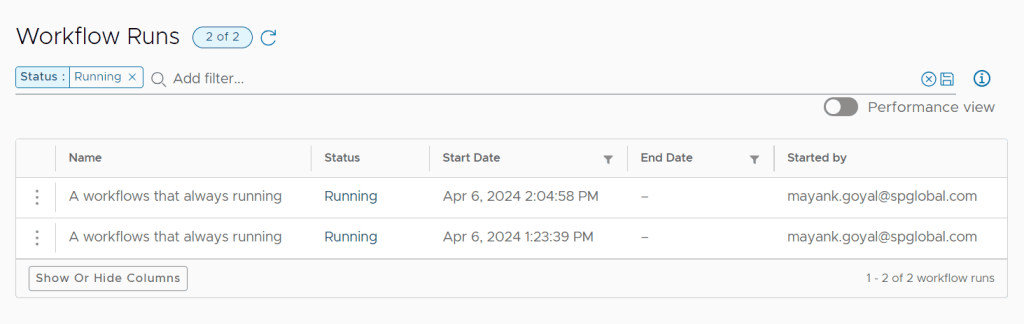
- Run this test workflow once or twice – A workflow that always running.
- Copy the channel Webhook URL in the master workflow Long Running Workflows Teams Notification variable
webhookUrl.

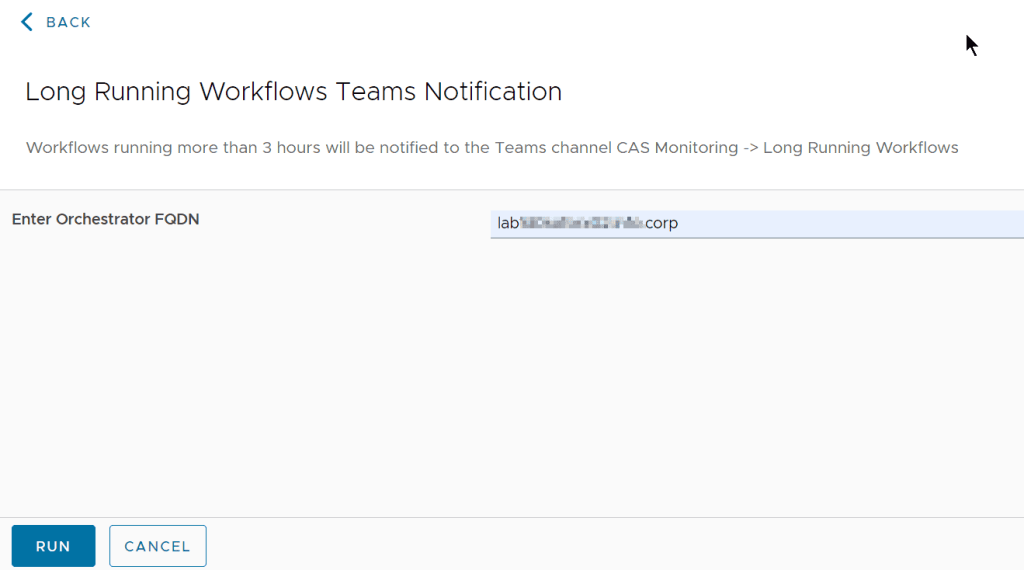
- Run it and provide the Orchestrator FQDN from which the details will be fetched.

- Go to the Teams channel to check if the notifications are being received.

Feel free to modify this package as per you requirement and if you have any doubts, feel free to reach out on Linkedin.
That’s all in this post for now. Until next time, happy orchestrating!
Package 📦
Link: Find it here on GitHub.
Content:
- Long Running Workflows Teams Notification
- Notify MSTeams Channel
- A workflows that always running
- getDateTimeXhoursAgo
- getVroNameAction
- getCurrentBearerToken
Discover more from Cloud Blogger
Subscribe to get the latest posts sent to your email.














https://www.brockpeterson.com/post/sending-vrops-alerts-to-microsoft-teams#:~:text=Go%20to%20your%20Team%2C%20create,Webhook%20URL%20you%20previously%20created.
Great work Mayank 👌👌👌👌