One of my team members discovered this information, and we were quite surprised to learn that such a limitation exists in SRM, of which we were previously unaware.
Overview
When using SRM / Live Recovery in VMware Cloud Foundation, OVF (vApp) properties are not preserved automatically during failover. This is a known limitation and is documented by Broadcom here.
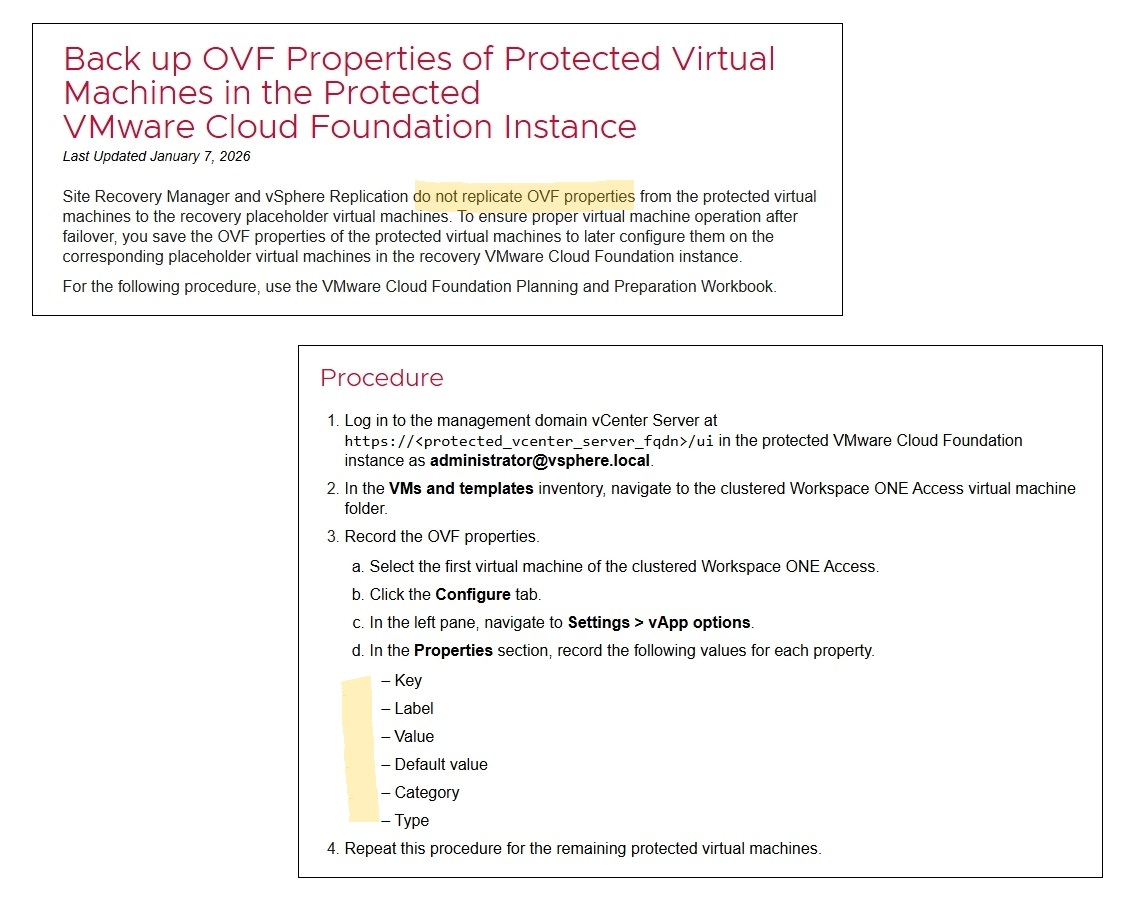
You have to manually record and save them which can be error-prone and a tedious task to do, especially when there are lot of VMs to cover.
To address this, I’ve built a Aria Automation Orchestrator (vRO) workflow that:
- Extracts OVF properties from one or more VMs provided as workflow input
- Reconstructs the real OVF keys correctly (using classId, id and instanceId)
- Exports them into a CSV
- Stores the CSV as a Resource Element with a timestamp for audit and restore later
Workflow Process
Things to check
- vCenter plugin must be configured in Orchestrator where protected VMs exist.
- This code is tested on Aria Automation Orchestrator 8.18.1 embedded.
- You can get the workflow package here and import in your environment before we start.
Running the workflow in vRO
After importing the package (how? learn here), go to the workflow “Backup VM OVF Properties as CSV” and enter vm names in the field value to find and select protected VMs. As you can see here, I have selected my Aria Automation, Aria Operations, Aria Suite Lifecycle and Workspace ONE Access appliance VMs.

Click Run and wait for the workflow to complete. You will see in the logs, which VM is processed and has how many OVF properties to preserve.
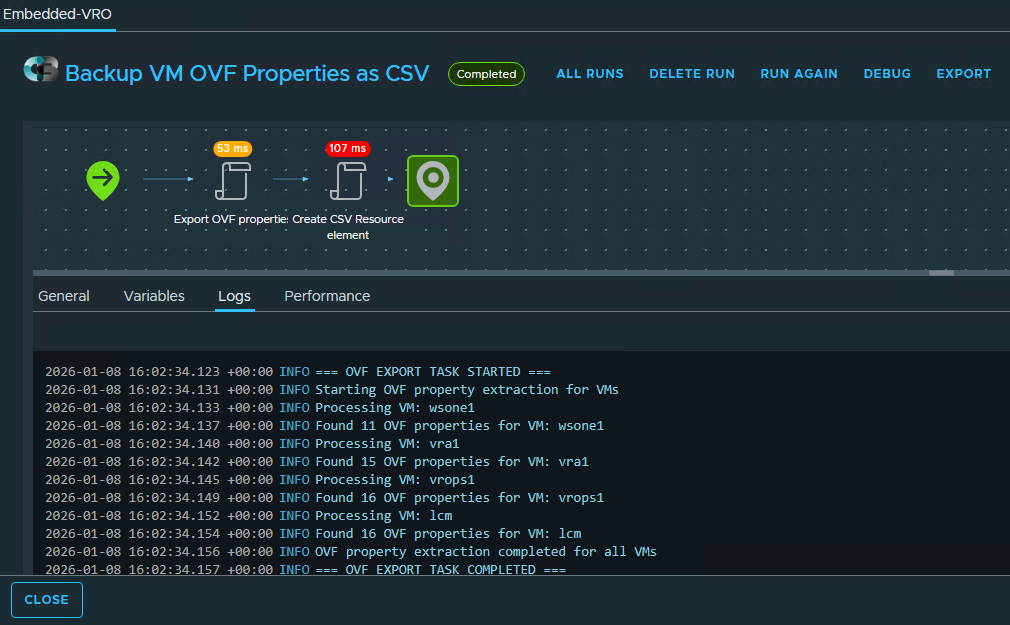
and also the creation of a resource element with date time stamp saved in ovf-backup folder with name ovf-properties_<timestamp>.csv as shown in logs below.
2026-01-08 16:02:34.123 +00:00 INFO === OVF EXPORT TASK STARTED ===
2026-01-08 16:02:34.131 +00:00 INFO Starting OVF property extraction for VMs
2026-01-08 16:02:34.133 +00:00 INFO Processing VM: wsone1
2026-01-08 16:02:34.137 +00:00 INFO Found 11 OVF properties for VM: wsone1
2026-01-08 16:02:34.140 +00:00 INFO Processing VM: vra1
2026-01-08 16:02:34.142 +00:00 INFO Found 15 OVF properties for VM: vra1
2026-01-08 16:02:34.145 +00:00 INFO Processing VM: vrops1
2026-01-08 16:02:34.149 +00:00 INFO Found 16 OVF properties for VM: vrops1
2026-01-08 16:02:34.152 +00:00 INFO Processing VM: lcm
2026-01-08 16:02:34.154 +00:00 INFO Found 16 OVF properties for VM: lcm
2026-01-08 16:02:34.156 +00:00 INFO OVF property extraction completed for all VMs
2026-01-08 16:02:34.157 +00:00 INFO === OVF EXPORT TASK COMPLETED ===
2026-01-08 16:02:34.170 +00:00 INFO === RESOURCE ELEMENT CREATION TASK STARTED ===
2026-01-08 16:02:34.172 +00:00 INFO Generated timestamp: 2026-01-08_16-02-34
2026-01-08 16:02:34.174 +00:00 INFO Prepared Resource Element content: ovf-properties_2026-01-08_16-02-34.csv
2026-01-08 16:02:34.182 +00:00 INFO Using existing Resource Element Category: ovf-backup
2026-01-08 16:02:34.183 +00:00 INFO Creating Resource Element: ovf-backup/ovf-properties_2026-01-08_16-02-34.csv
2026-01-08 16:02:34.275 +00:00 INFO === RESOURCE ELEMENT CREATION TASK COMPLETED ===
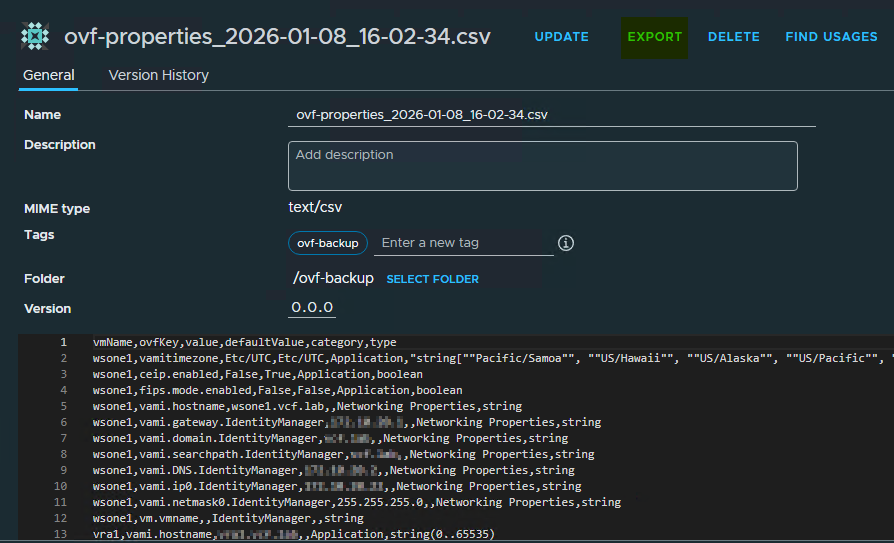
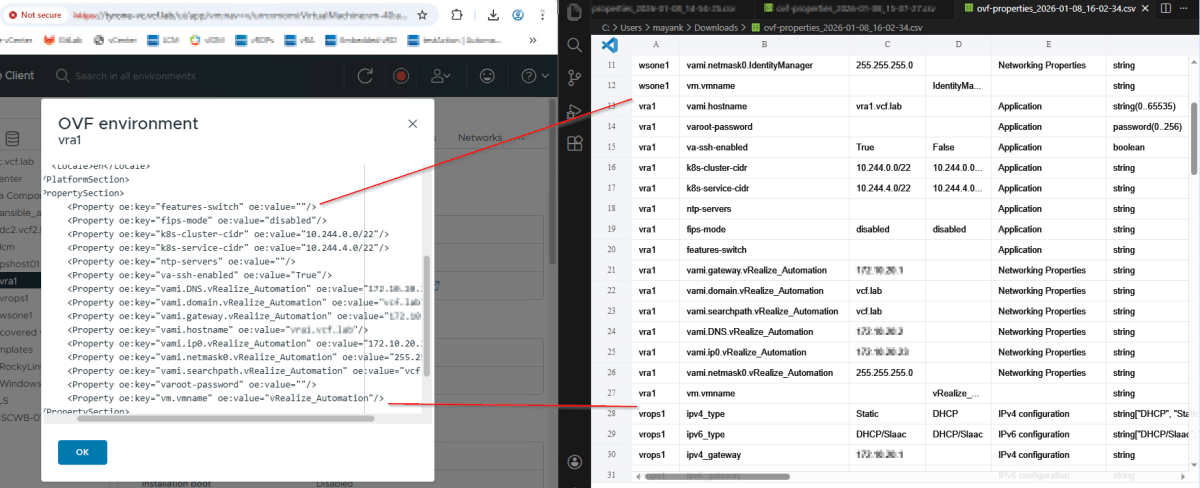
Go to Resource Elements tab and locate the newly created CSV resource element and export it. If you want, you can verify the entries from vCenter by selecting VM object -> Configure -> vApp Options -> OVF Settings -> View OVF Environment.
Reference Code
Export OVF properties
/**
 * Export OVF (vApp) properties for multiple VMs into CSV
 *
 * @param {VC:VirtualMachine[]} arrVirtualMachine
 * @return {string} CSV output
 */

System.log("=== OVF EXPORT TASK STARTED ===");

csvContent = exportOvfPropertiesToCsv(arrVirtualMachine);

System.log("=== OVF EXPORT TASK COMPLETED ===");

function exportOvfPropertiesToCsv(arrVirtualMachine) {

	System.log("Starting OVF property extraction for VMs");

	if (!arrVirtualMachine || arrVirtualMachine.length === 0) {
		throw "arrVirtualMachine is empty or null";
	}

	var csvLines = [];
	csvLines.push("vmName,ovfKey,value,defaultValue,category,type");

	for (var vmIndex = 0; vmIndex < arrVirtualMachine.length; vmIndex++) {

		var vm = arrVirtualMachine[vmIndex];
		var vmName = vm.name;

		System.log("Processing VM: " + vmName);

		if (!vm.config ||
		    !vm.config.vAppConfig ||
		    !vm.config.vAppConfig.property ||
		    vm.config.vAppConfig.property.length === 0) {

			System.warn("No OVF properties found for VM: " + vmName);
			continue;
		}

		var properties = vm.config.vAppConfig.property;
		System.log("Found " + properties.length + " OVF properties for VM: " + vmName);

		for (var i = 0; i < properties.length; i++) {

			var prop = properties[i];

			var ovfKey        = buildOvfKey(prop);
			var value         = prop.value || "";
			var defaultValue  = prop.defaultValue || "";
			var category      = prop.category || "";
			var type          = prop.type || "";

			// Normalize VMware enum quoting first
			value = normalizeQuotes(value);

			// CSV escaping
			ovfKey       = escapeCsv(ovfKey);
			value        = escapeCsv(value);
			defaultValue = escapeCsv(defaultValue);
			category     = escapeCsv(category);
			type         = escapeCsv(type);

			csvLines.push(
				vmName + "," +
				ovfKey + "," +
				value + "," +
				defaultValue + "," +
				category + "," +
				type
			);
		}
	}

	System.log("OVF property extraction completed for all VMs");
	return csvLines.join("\n");
}

/**
 * Build the real OVF key:
 * classId.id.instanceId (only if parts exist)
 */
function buildOvfKey(prop) {

	var id = prop.id || "";
	var classId = prop.classId || "";
	var instanceId = prop.instanceId || "";

	if (classId && instanceId) {
		return classId + "." + id + "." + instanceId;
	}

	if (classId) {
		return classId + "." + id;
	}

	return id;
}

/**
 * Normalize duplicated escaped quotes ("") → (")
 */
function normalizeQuotes(value) {
	return value.replace(/""/g, "\"");
}

/**
 * CSV escape helper (RFC-4180 compliant)
 */
function escapeCsv(value) {
	if (value.indexOf(",") !== -1 || value.indexOf("\"") !== -1) {
		return "\"" + value.replace(/"/g, "\"\"") + "\"";
	}
	return value;
}
Create CSV Resource element
System.log("=== RESOURCE ELEMENT CREATION TASK STARTED ===");

// Build human-readable timestamp
var now = new Date();

function pad(n) {
	return (n < 10) ? "0" + n : n;
}

var timestamp =
	now.getFullYear() + "-" +
	pad(now.getMonth() + 1) + "-" +
	pad(now.getDate()) + "_" +
	pad(now.getHours()) + "-" +
	pad(now.getMinutes()) + "-" +
	pad(now.getSeconds());

System.log("Generated timestamp: " + timestamp);

// Create MIME attachment from CSV
var mime = new MimeAttachment();

var name = "ovf-properties_" + timestamp + ".csv";
mime.name = name;
mime.mimeType = "text/csv";
mime.content = csvContent;

System.log("Prepared Resource Element content: " + name);

// Get or create Resource Element Category
var path = "ovf-backup";
var resourceCat = Server.getResourceElementCategoryWithPath(path);

if (!resourceCat) {
	System.log("Resource Element Category not found, creating: " + path);
	resourceCat = Server.createResourceElementCategory(path);
} else {
	System.log("Using existing Resource Element Category: " + path);
}

// Always create a new Resource Element
System.log("Creating Resource Element: " + path + "/" + name);
Server.createResourceElement(path, name, mime);

System.log("=== RESOURCE ELEMENT CREATION TASK COMPLETED ===");
Developer Note
1. prop.key vs prop.id
prop.keyis a numeric internal identifier- It does not match the OVF XML key
2. Reconstructing exact OVF Key
OVF XML keys like: vami.DNS.IdentityManager
Are represented in vSphere as:
classId = vamiid = DNSinstanceId = IdentityManager
Hence, id alone would not work and needed to be reconstructed in the code.
Conclusion
With this approach we now have:
- Deterministic OVF properties preservation with no human-errors
- CSV-based backups for DR
- Timestamped, auditable artifacts
- A clean foundation for post-failover restore automation
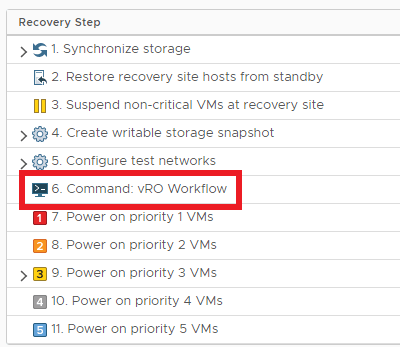
The next logical step is to read this CSV and reapply OVF properties on the recovered VMs, which can be done using ReconfigVM_Task. You can also configure to trigger vRO Workflow as part of SRM failover as shown in this article Triggering vRO Workflow with SRM Recovery Plan by Sam Perrin.
📦Download package from GitHub
Here is the download link.
If you want, I can write Part 2 of this blog covering:
- CSV parsing
- Reapplying OVF properties
- Validation after recovery
Just say the word.
Discover more from Cloud Blogger
Subscribe to get the latest posts sent to your email.