Why Use Advanced Config Parameters?
VM advanced parameters (extraConfig in .vmx) provide granular control beyond standard vSphere UI settings. We can use them for troubleshooting, experimental tests, application-specific fixes, etc. Check official guide for manually adding these properties here.
Primary Use Cases:
- VMware Support fixes: Fixing failed snapshots (
disk.enableUUID) (link) - Enabling new featuresets: Enabling a locked feature (
isolation.tools.setGUIOptions.enableTRUE) like the Copy/Paste between the VMRC client and a Windows/Linux Virtual Machine shown here. - Experimental features: Add parameters to enable and test experimental values.
Performance:(not supported as found out by Simon Sparks)cpu.hotadd,mem.hotgrow- Passing parameter values to guest scripts: Use vRO to write
guestinfo.*keys into VM advanced configuration and let a guest script read them withvmtoolsdas a clean, image-agnostic way to pass dynamic metadata into the OS.
Only use when documented by VMware or support—incorrect settings cause instability.
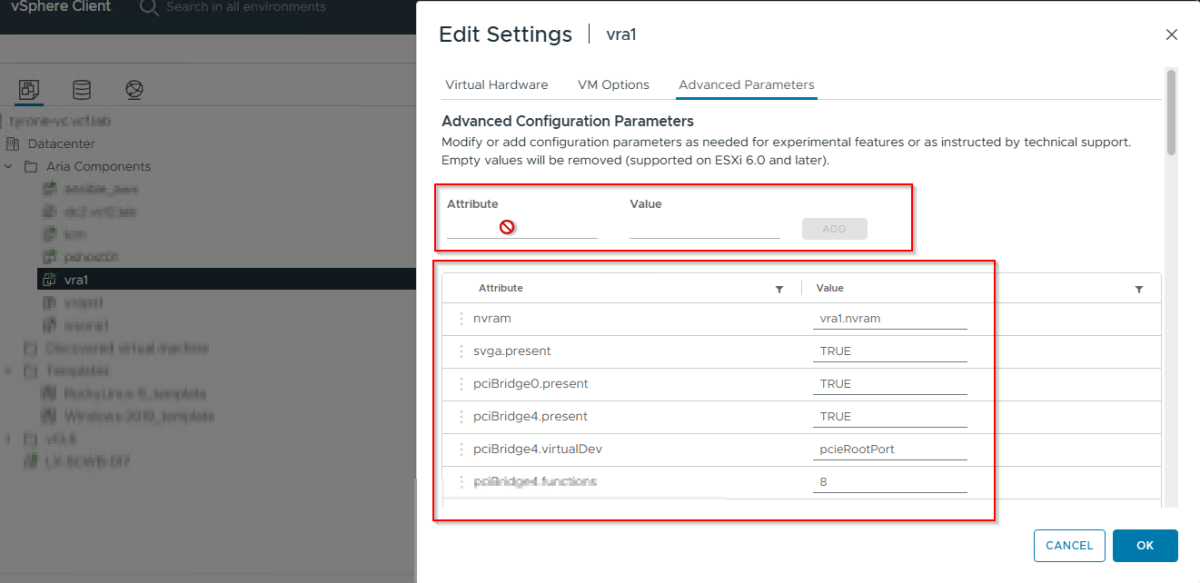
Biggest advantage with vRO is that If the VM is powered on, UI doesn’t allow you to put new attributes but with vRO, this is quite possible. And of course it can be done as part of vRA extensibility as well.
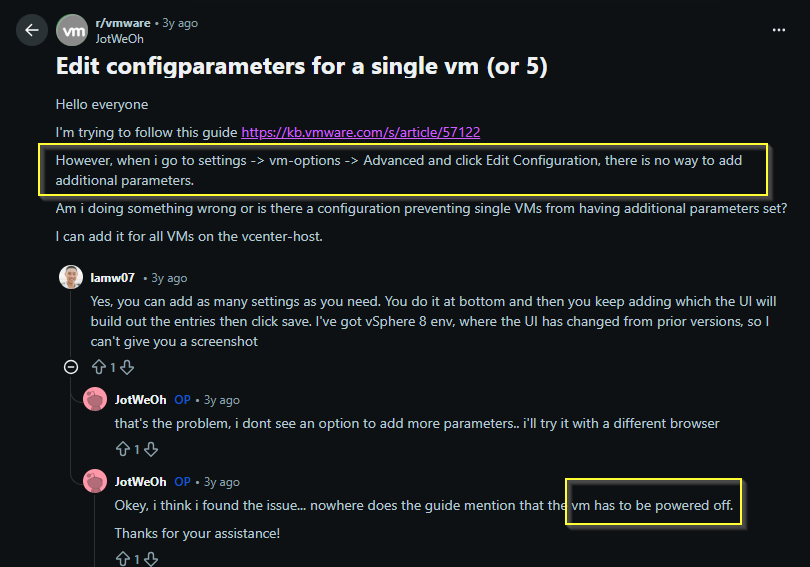
Orchestrator Process
I found a use-case where customers wants to update these parameters as part of VM provisioning via Aria Automation. It was suggested somewhere that you could add your advanced parameters as custom properties in your Automation YAML template. But that didn’t work well for me. So, here is how I do it using Orchestrator code.
Get & Log All Settings
Lists all keys/values (e.g. svga.present: TRUE) using vm.config.extraConfig.
// Input:  vm (type: VC:VirtualMachine)

if (!vm) {
    throw "VM is null or undefined";
}

var extraConfig = vm.config.extraConfig;

if (!extraConfig || extraConfig.length === 0) {
    System.log("No advanced settings (extraConfig is empty).");
} else {
    System.log("Advanced settings for VM: " + vm.name);
    for each (var option in extraConfig) {
        // option is VcOptionValue
        System.log("Key: " + option.key + " | Value: " + option.value);
    }
}
2026-01-12 07:36:55.325 +00:00 INFO Advanced settings for VM: vrops1
2026-01-12 07:36:55.332 +00:00 INFO Key: nvram | Value: vrops1.nvram
2026-01-12 07:36:55.333 +00:00 INFO Key: svga.present | Value: TRUE
2026-01-12 07:36:55.334 +00:00 INFO Key: pciBridge0.present | Value: TRUE
2026-01-12 07:36:55.335 +00:00 INFO Key: pciBridge4.present | Value: TRUE
2026-01-12 07:36:55.336 +00:00 INFO Key: pciBridge4.virtualDev | Value: pcieRootPort
2026-01-12 07:36:55.337 +00:00 INFO Key: pciBridge4.functions | Value: 8
2026-01-12 07:36:55.338 +00:00 INFO Key: pciBridge5.present | Value: TRUE
2026-01-12 07:36:55.339 +00:00 INFO Key: pciBridge5.virtualDev | Value: pcieRootPort
2026-01-12 07:36:55.340 +00:00 INFO Key: pciBridge5.functions | Value: 8
2026-01-12 07:36:55.341 +00:00 INFO Key: pciBridge6.present | Value: TRUE
2026-01-12 07:36:55.342 +00:00 INFO Key: pciBridge6.virtualDev | Value: pcieRootPort
2026-01-12 07:36:55.343 +00:00 INFO Key: pciBridge6.functions | Value: 8
2026-01-12 07:36:55.344 +00:00 INFO Key: pciBridge7.present | Value: TRUE
2026-01-12 07:36:55.345 +00:00 INFO Key: pciBridge7.virtualDev | Value: pcieRootPort
2026-01-12 07:36:55.346 +00:00 INFO Key: pciBridge7.functions | Value: 8
2026-01-12 07:36:55.347 +00:00 INFO Key: hpet0.present | Value: TRUE
2026-01-12 07:36:55.348 +00:00 INFO Key: ide0:0.autodetect | Value: TRUE
2026-01-12 07:36:55.349 +00:00 INFO Key: viv.moid | Value: a420a8cc-3a6a-41fe-99bb-3e3a9851d8f5:vm-64:VOewZRiuZJzRQrQezU4HzeR4o1EP7WH6jlpMJMrmGMk=
2026-01-12 07:36:55.350 +00:00 INFO Key: vmxstats.filename | Value: vrops1.scoreboard
2026-01-12 07:36:55.351 +00:00 INFO Key: numa.autosize.cookie | Value: 40001
2026-01-12 07:36:55.352 +00:00 INFO Key: numa.autosize.vcpu.maxPerVirtualNode | Value: 4
2026-01-12 07:36:55.353 +00:00 INFO Key: sched.swap.derivedName | Value: /vmfs/volumes/vsan:52a8ebaa182cb7b8-f7166d0e64e1cbb5/72d8a668-d653-935a-89d4-005056ba867b/vrops1-924ec1b5.vswp
2026-01-12 07:36:55.354 +00:00 INFO Key: pciBridge0.pciSlotNumber | Value: 17
2026-01-12 07:36:55.355 +00:00 INFO Key: pciBridge4.pciSlotNumber | Value: 21
2026-01-12 07:36:55.356 +00:00 INFO Key: pciBridge5.pciSlotNumber | Value: 22
2026-01-12 07:36:55.357 +00:00 INFO Key: pciBridge6.pciSlotNumber | Value: 23
2026-01-12 07:36:55.358 +00:00 INFO Key: pciBridge7.pciSlotNumber | Value: 24
2026-01-12 07:36:55.359 +00:00 INFO Key: scsi0.pciSlotNumber | Value: 160
2026-01-12 07:36:55.360 +00:00 INFO Key: ethernet0.pciSlotNumber | Value: 192
2026-01-12 07:36:55.361 +00:00 INFO Key: scsi0:2.redo | Value:
2026-01-12 07:36:55.362 +00:00 INFO Key: scsi0:0.redo | Value:
2026-01-12 07:36:55.363 +00:00 INFO Key: scsi0:1.redo | Value:
2026-01-12 07:36:55.364 +00:00 INFO Key: scsi0.sasWWID | Value: 50 05 05 6d 2a 59 64 60
2026-01-12 07:36:55.365 +00:00 INFO Key: vmotion.checkpointFBSize | Value: 4194304
2026-01-12 07:36:55.366 +00:00 INFO Key: vmotion.checkpointSVGAPrimarySize | Value: 4194304
2026-01-12 07:36:55.367 +00:00 INFO Key: monitor.phys_bits_used | Value: 42
2026-01-12 07:36:55.368 +00:00 INFO Key: softPowerOff | Value: FALSE
2026-01-12 07:36:55.369 +00:00 INFO Key: tools.capability.verifiedSamlToken | Value: TRUE
2026-01-12 07:36:55.370 +00:00 INFO Key: guestInfo.detailed.data | Value: architecture='X86' bitness='64' distroAddlVersion='5.0' distroName='VMware Photon OS' distroVersion='5.0' familyName='Linux' kernelVersion='6.1.124-1.ph5' prettyName='VMware Photon OS/Linux'
2026-01-12 07:36:55.371 +00:00 INFO Key: vmware.tools.internalversion | Value: 12421
2026-01-12 07:36:55.372 +00:00 INFO Key: vmware.tools.requiredversion | Value: 12448
2026-01-12 07:36:55.373 +00:00 INFO Key: migrate.hostLogState | Value: none
2026-01-12 07:36:55.374 +00:00 INFO Key: migrate.migrationId | Value: 0
2026-01-12 07:36:55.375 +00:00 INFO Key: migrate.hostLog | Value: vrops1-5698a8ad.hlog
2026-01-12 07:36:55.376 +00:00 INFO Key: test1 | Value: value1
2026-01-12 07:36:55.377 +00:00 INFO Key: test2 | Value: value1Set/Update Single Advanced Config Parameter
/**
 * Set/add single VM advanced setting (updates if key exists, no duplicate error).
 * Preserves all other existing settings automatically.
 *
 * @param {VC:VirtualMachine} vm         - Target VM
 * @param {string}             optionKey        - Setting key
 * @param {string}             optionValue      - Setting value
 * @returns {VC:Task} Reconfig task
 */

return setSingleAdvancedSetting(vm, optionKey, optionValue)

function setSingleAdvancedSetting(vm, key, value) {
    if (!vm) throw "VM is null";

    var spec = new VcVirtualMachineConfigSpec();
    var extraConfig = new Array();
    extraConfig[0] = new VcOptionValue();
    extraConfig[0].key = key;
    extraConfig[0].value = value;
    spec.extraConfig = extraConfig;
    spec.deviceChange = new Array();
    spec.virtualNuma = new VcVirtualMachineVirtualNuma();

    return vm.reconfigVM_Task(spec);
}
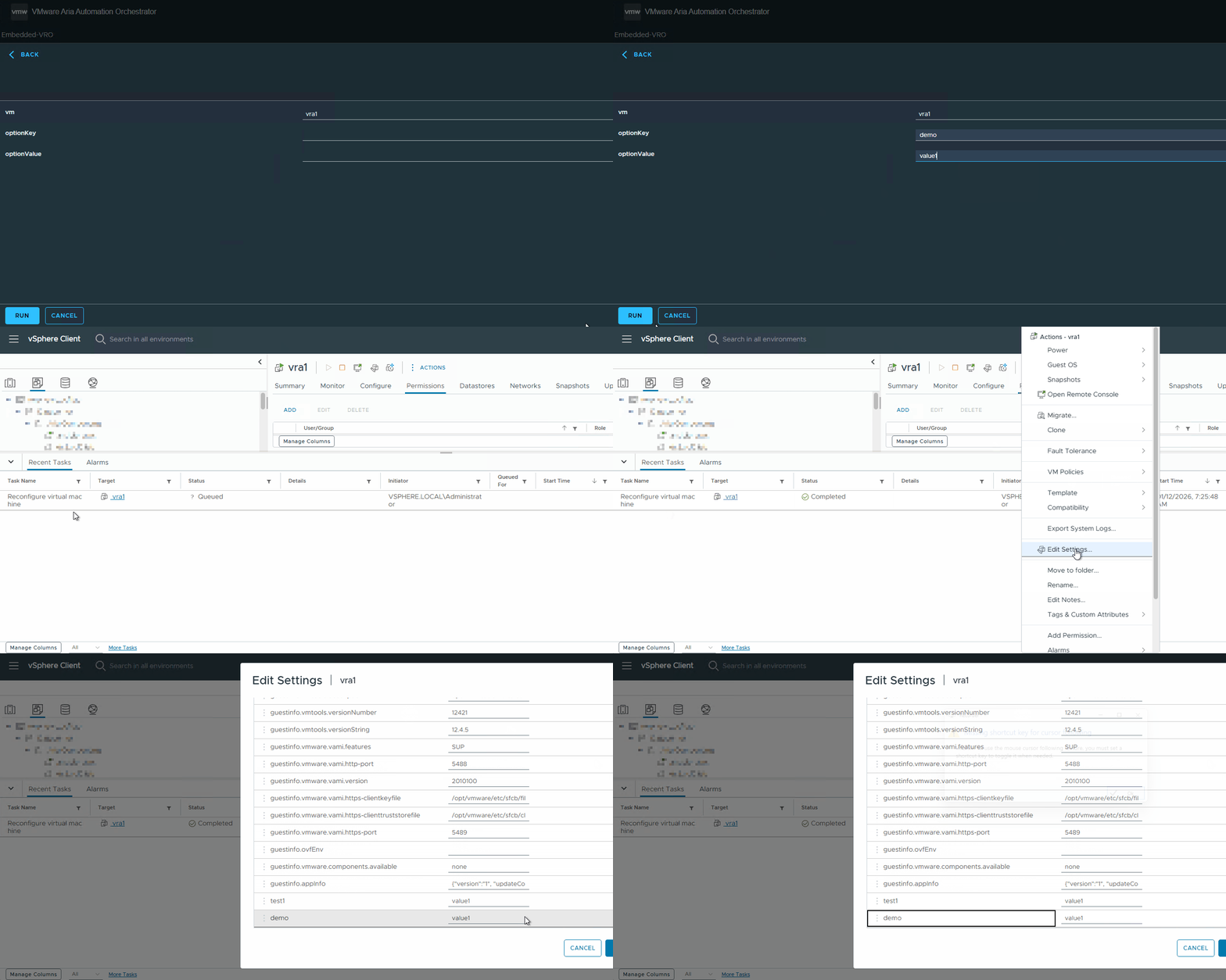
Full Workflow Integration
- Run
getAdvancedConfigurationParameters_VcVM(vm)to log all existing parameters. - Run
setAdvancedConfigurationParameters_VcVMto add a new parameter to the vm.
(vm, "custom.flag", "true") - Wait for task to complete.
- Re-run get to verify if the new parameter get added.
vRA Extensibility Integration
You can extend to VMware Aria Automation via post-provisioning event topic:
Create a blocking Subscription on compute post provision event topic that points to a vRO workflow that would look something like this:
// // Get values from input properties
var cp = inputProperties.customProperties;
var vmName = inputProperties.resourceNames[0];
// Logic to get vm of type VC:VirtualMachine based on vmName

// Set custom flags post-provisioning
var task = setAdvancedConfigurationParameters_VcVM(vm, "custom.flag", "true");
// Wait for task to complete

getAdvancedConfigurationParameters_VcVM(vm);
Using VM Advanced Configuration and VMware Tools as a Metadata Bridge
One particularly powerful use case for advanced configuration parameters is using them as a lightweight data bus between vSphere and the guest OS during automated provisioning. By having vRO\PowerShell write key–value pairs into the VM’s extraConfig using a guestinfo.* naming convention at build time, you can inject environment-specific metadata (for example, app name, role, environment, bootstrap JSON, registration tokens) directly into the VM without touching templates or images. Once the VM is powered on, a simple script inside the guest can call vmtoolsd/vmware-rpctool to read those guestinfo.* values and use them to drive its bootstrap logic, write local config files, or register itself with external systems. This pattern effectively turns VMware Tools into a secure parameter injection channel from your automation layer into the OS, avoids baking secrets or configuration into golden images, and works consistently across both Linux and Windows guests.
Discover more from Cloud Blogger
Subscribe to get the latest posts sent to your email.