Introduction
VMware vRealize Orchestrator (vRO) configuration elements are essential for storing and managing configuration data in your automation workflows. It can store credentials, environment specifics URLs, parameters, API keys, email addresses etc. Most of the time, there are only string based objects, which logically should be easy to maintain but the reality is different. Unlike resource elements, Configuration elements don’t support Import\Export operations.
But what if?
What if you can able to do so with a quick copy-paste – Leveraging CSV format. I have created a solution that worked for me and may work for you. Let’s have a look.
Key Features
1. Logistics Improvement
- Allows quick migration of saved configuration values across environments.
- Ease saving the configuration values locally.
- Allows quick creation of complex configuration elements from a plain CSV.
2. Bidirectional Conversion
- CSV to Configuration Element: Import configuration data from CSV files
- Configuration Element to CSV: Export existing configuration elements to CSV format
3. Supported Data Types
The solution now handles an extensive range of data types:
Basic Types:
- String
- SecureString
- Number
- Boolean
- Path
- Text
- RegExp
- Date
Complex Types:
- Properties (key-value pairs)
- Arrays (with type detection)
How it works?
Create Configuration Element from CSV Content
You download the package here or use the script to create your own version.
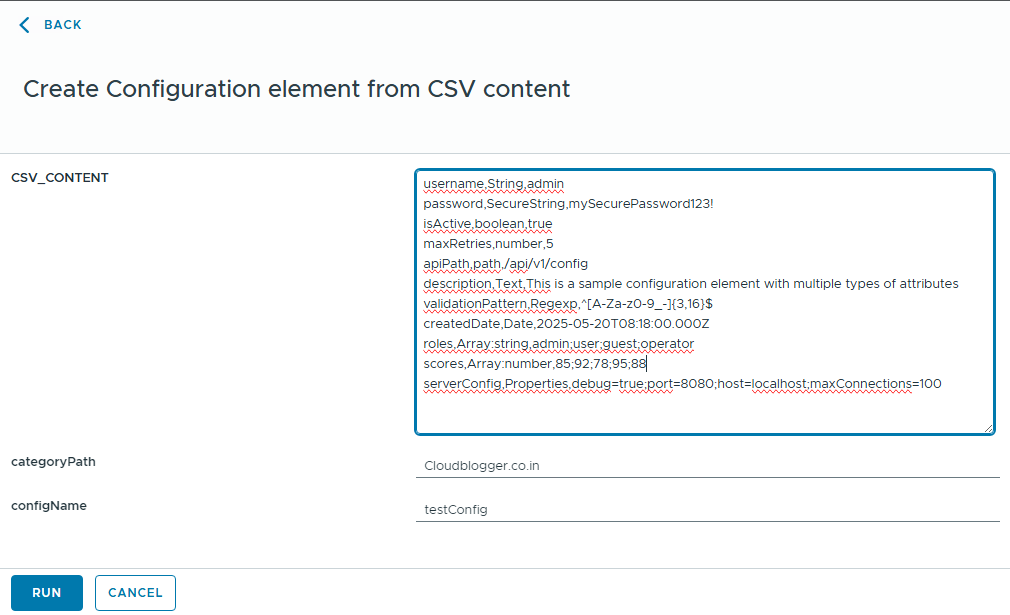
It uses CSV with supported types mentioned above. Below is a test input with all possible types.
username,String,admin
password,SecureString,mySecurePassword123!
isActive,boolean,true
maxRetries,number,5
apiPath,path,/api/v1/config
description,Text,This is a sample configuration element with multiple types of attributes
validationPattern,Regexp,^[A-Za-z0-9_-]{3,16}$
createdDate,Date,2025-05-20T08:18:00.000Z
roles,Array:string,admin;user;guest;operator
scores,Array:number,85;92;78;95;88
serverConfig,Properties,debug=true;port=8080;host=localhost;maxConnections=100
Running the workflow from the package

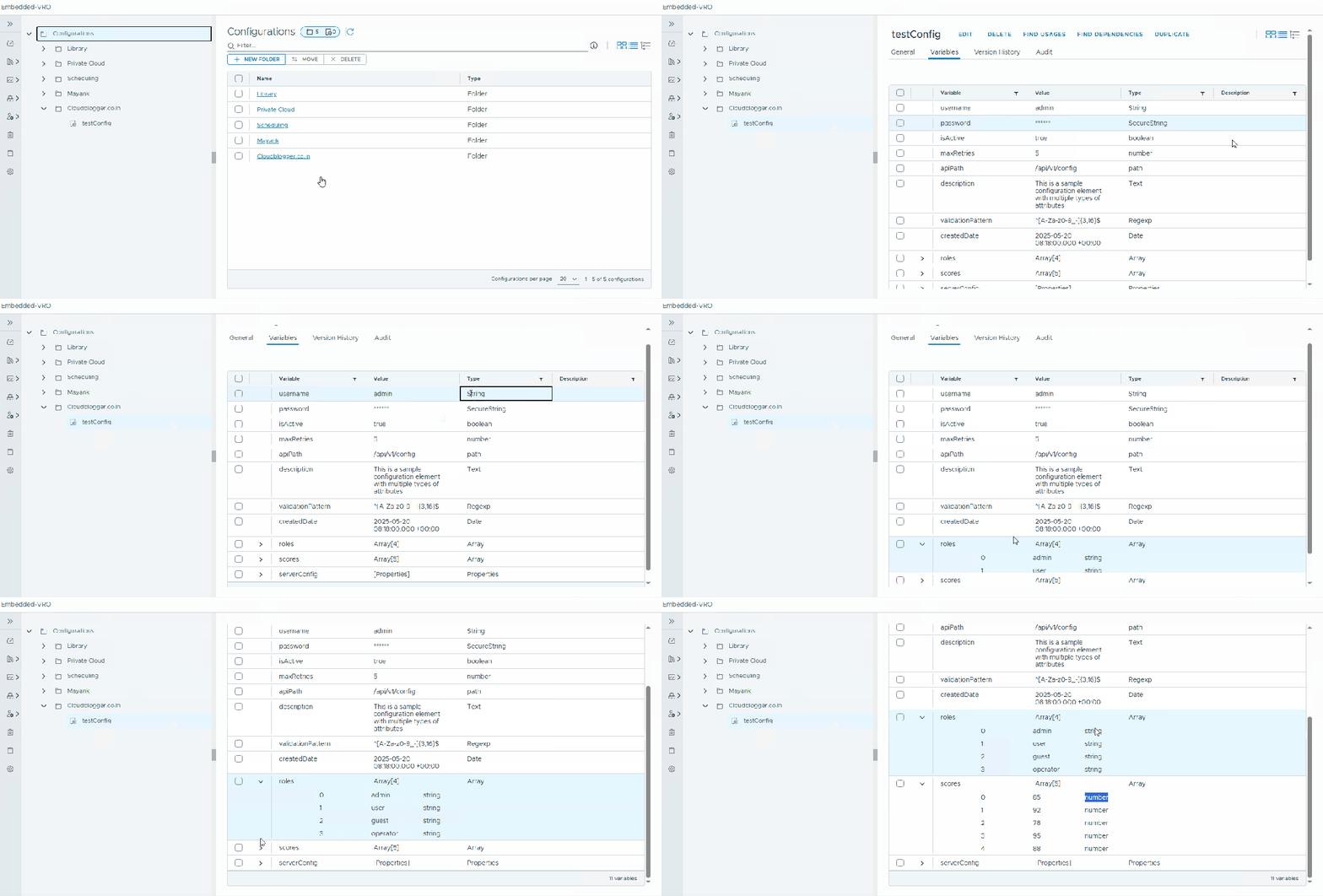
We have used this script that creates or updates configuration elements from CSV content:
/**
 * @description Code to create or update configuration elements from CSV content in vRealize Orchestrator
 * @param {string} categoryPath - Category path of Configuration Element (e.g. "Library/Config")
 * @param {string} configName - Name of Configuration Element
 * @param {string} CSV_CONTENT - Comma separated content in format: key,type,value
 * @returns {ConfigurationElement} The created or updated configuration element
 *
 * @example
 * CSV Format Examples:
 * username,string,root
 * password,SecureString,mypass
 * count,number,42
 * active,boolean,true
 * path,path,/var/log
 * settings,Properties,host=localhost;port=8080
 * roles,Array:string,admin;user;guest
 * numbers,Array:number,1;2;3;4;5
 * description,Text,This is a very long text content
 * pattern,Regexp,^[a-zA-Z0-9]+$
 * startDate,Date,2025-05-20 08:18:00.000 +00:00
 */
var configCategory = Server.getConfigurationElementCategoryWithPath(categoryPath);
var configElement = null;
if (configCategory) {
    System.log("Found configuration category '" + configCategory.name + "'");
    var configElements = configCategory.configurationElements;
    for (var i in configElements) {
        ce = configElements[i];
        if (ce.name == configName) {
            configElement = ce;
            break;
        }
    }
    if (configElement) {
        System.log("Found configuration '" + configElement.name + "'");
    } else {
        configElement = Server.createConfigurationElement(categoryPath, configName);
        System.log("Created configuration element '" + configElement.name + "'");
    }
} else {
    configElement = Server.createConfigurationElement(categoryPath, configName);
    System.log("Created category path '" + categoryPath + "' and configuration element '" + configElement.name + "'");
}

var _lines = CSV_CONTENT.split("\n");
for (var i in _lines) {
    var _fields = _lines[i].split(",");
    var key = _fields[0];
    var type = _fields[1];
    var allValues = _fields[2]; //if value is single (not comma seperated)
    if (_fields.length > 3) { // if value itself has multiple comma seperated values
        for (var j = 3; j < _fields.length; j++)
            allValues += "," + _fields[j];
    }

    // Handle different types
    if (type.toLowerCase() === "properties") {
        var props = new Properties();
        var pairs = allValues.split(";");
        for (var p in pairs) {
            var pair = pairs[p].split("=");
            if (pair.length === 2) {
                props.put(pair[0].trim(), pair[1].trim());
            }
        }
        configElement.setAttributeWithKey(key, props, type);
    } else if (type.toLowerCase().indexOf("array") === 0) {
        var arrayType = "string";
        if (type.indexOf(":") > -1) {
            arrayType = type.split(":")[1].toLowerCase().trim();
        }

        var array = allValues.split(";").map(function(item) {
            var value = item.trim();
            switch(arrayType) {
                case "number":
                    return Number(value);
                case "boolean":
                    return value.toLowerCase() === "true";
                default:
                    return value;
            }
        });
        configElement.setAttributeWithKey(key, array, "Array");
    } else if (type.toLowerCase() === "date") {
        // Handle Date type - vRO expects Date objects
        var dateValue = new Date(allValues.trim());
        if (isNaN(dateValue.getTime())) {
            throw new Error("Invalid date format for key: " + key);
        }
        configElement.setAttributeWithKey(key, dateValue, type);
    } else if (type.toLowerCase() === "regexp") {
        // Handle Regular Expression type
        try {
            // Test if the regex is valid
            new RegExp(allValues.trim());
            configElement.setAttributeWithKey(key, allValues.trim(), "Regexp");
        } catch(e) {
            throw new Error("Invalid regular expression for key: " + key + ": " + e.message);
        }
    } else if (type.toLowerCase() === "text") {
        // Handle Text and LongText types
        configElement.setAttributeWithKey(key, allValues.trim(), "Text");
    } else {
        configElement.setAttributeWithKey(key, allValues, type);
    }
}
Converting Configuration Element to CSV
Check the package to find the other workflow that can convert a config element into CSV content as output log.
Improvements Over Previous Version
In 2021, I had this requirement and I was able to get the basics done right. I even have a article on LinkedIn in case, you want to check. In this iteration, I have added some more types, error checks and lot more to it for better usability.
- Bidirectional Support: Added ability to export configuration elements to CSV format
- Type Safety: Enhanced type checking and validation
- Error Handling: Improved error messages and validation
- Date Handling: Proper ISO 8601 date formatting
- Array Support: Type detection and validation for array elements
Similar Implementations by others
Paul Davey (JSON): https://automationpro.co.uk/configuration-element-to-json-transformer
Stefan Schnell (JSON): https://blog.stschnell.de/exportOrchestratorConfigurationsAsJson.html
Conclusion
This enhanced version provides a robust solution for managing vRO configuration elements through CSV files. The bidirectional conversion capability, along with comprehensive type support and error handling, makes it a valuable tool for automation engineers working with vRO.
Discover more from Cloud Blogger
Subscribe to get the latest posts sent to your email.