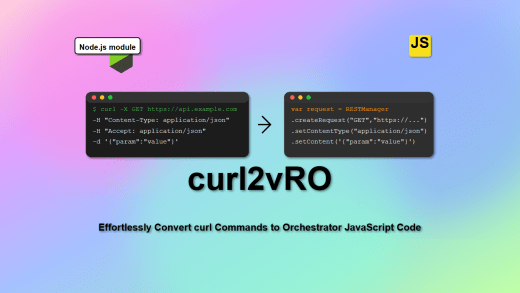
v2.0 updates
- Moved from
REST:HosttoVRA:Host - Use Library workflows
GET OperationandPOST Operationinstead of custom script - Added support for Cloud template triggered deployments as well along with Catalog item triggered deployments.
Get the latest v2.0 package here.
Intro
One of the most sorely missed features in Aria Automation is the option to easily resubmit a failed deployment after going through the whole ordeal of filling out a tedious Service Broker form. We’ve all been there – you never anticipate it failing, but lo and behold, a silly mistake or a mysterious backend hiccup throws a wrench in the works. The thought of refilling that form is enough to make anyone break out in a cold sweat!
I totally understand that feeling. Happens with me every day. But What if we can fix this once and forever.
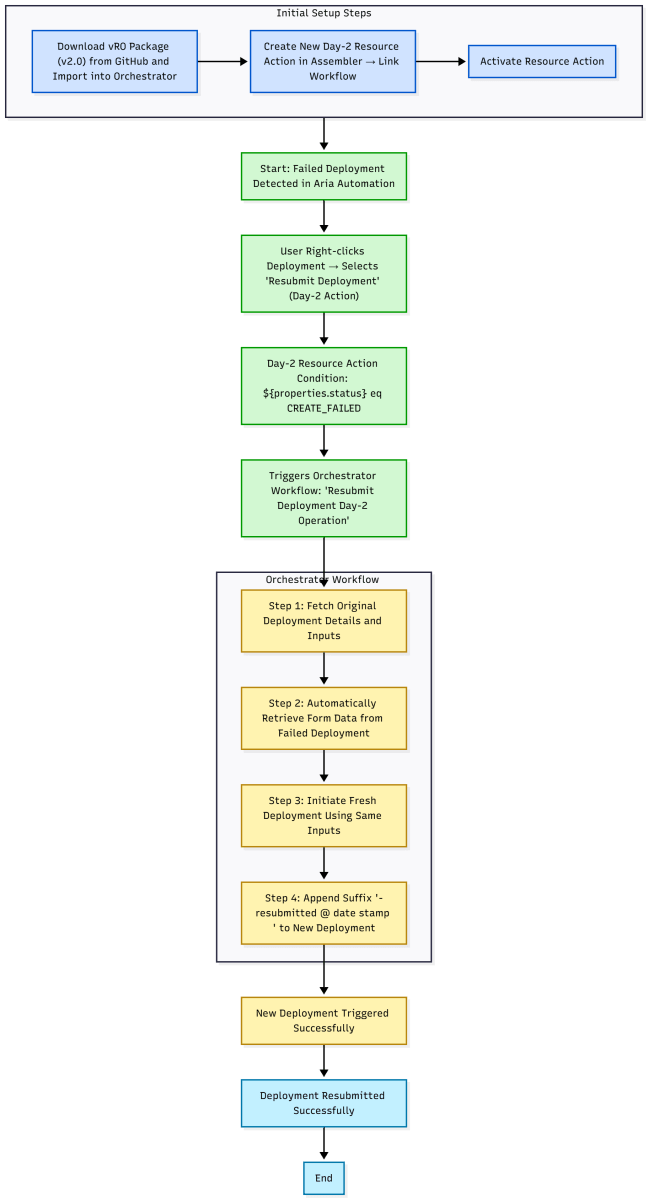
Let’s try something. How about creating a Day-2 operation which would appear on a failed deployment, automatically fetches the input values from current deployment and pass it to deploy a fresh deployment with it. It would be great, isn’t it!
Steps
Step 1. Download vRO Package
Download the package from GitHub here and import it in your Aria Automation integrated Orchestrator.
In the workflow variables, check if the vRA Host is set or else it would fail instantly.
Don’t run the workflow directly from Orchestrator as it gets the deploymentID from metadata field passed to Orchestrator only when triggered from Automation.
Step 2. Create a Day-2 Resource Action
- Go to Assemble -> Design -> Resource Actions and Create New Action.

| Name | ResubmitDeployment |
| Display name | Resubmit Deployment |
| Description | Allows you to resubmit a deployment with same set of inputs |
| Activate | TRUE |
| Scope | TRUE |
| Resource Type | Deployment |
| Action/Workflow | Resubmit Deployment Day 2 Operation |
| Condition | ${properties.status} eq CREATE_FAILED |
- Once you click CREATE, it should be shown as below.

- To check its visibility as a Resource action, Right-click on a failed deployment under Resources tab.
Demo
Once you do the setup shown in above steps, you can go to a failed deployment and click on Resubmit Deployment action.
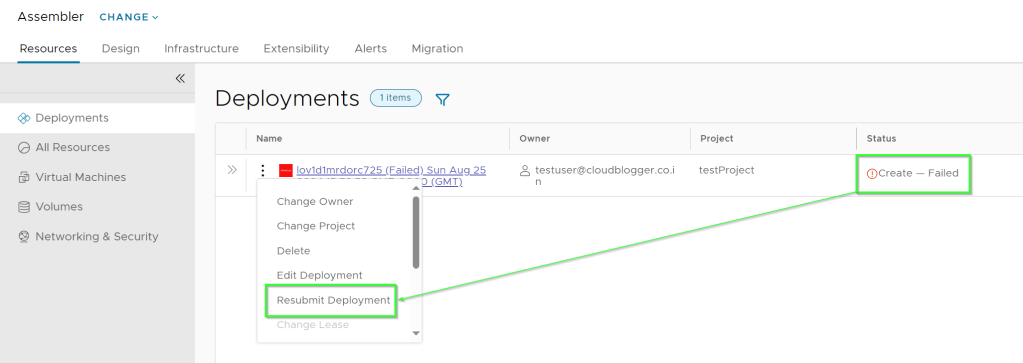
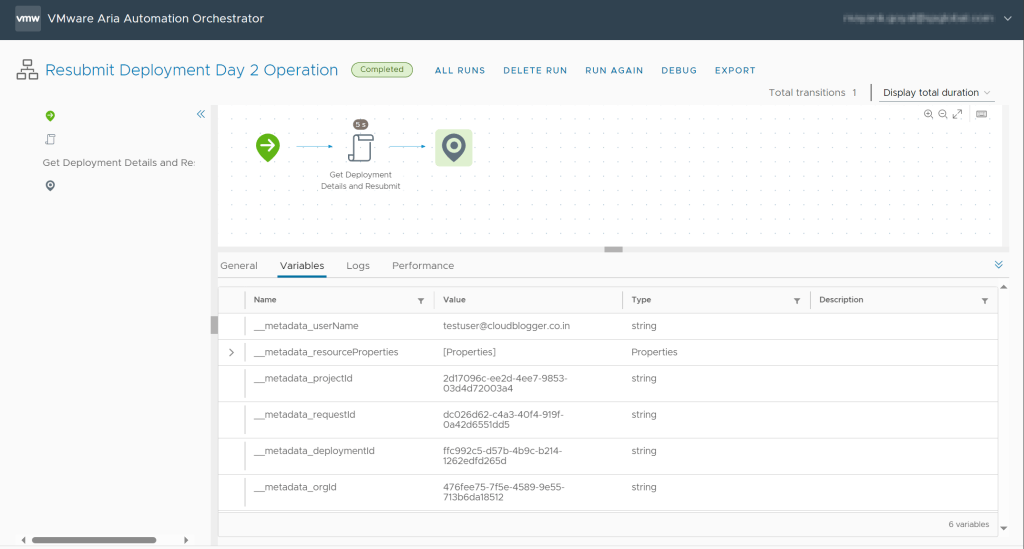
As soon as you click Resubmit Deployment, wait for few seconds and check the backend workflow if it gets triggered.
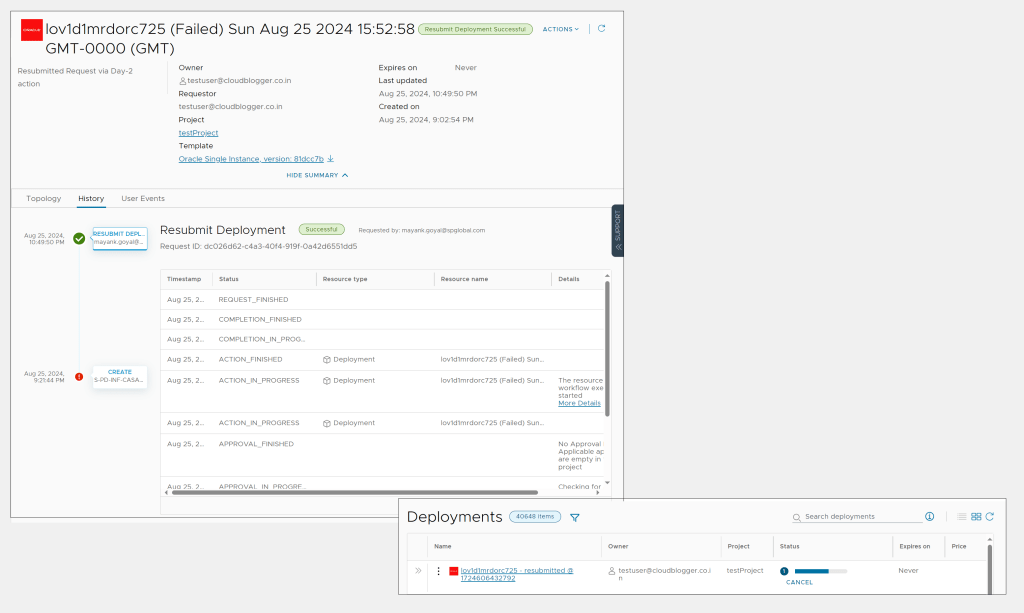
If everything goes right, you will see a new deployment triggered with a suffix that looks like “- resubmitted @ 16246542136465“
That’s all in this article for now. Do let me know if you have any questions. Please drop them in comments and I will more than happy to answer them. Cya.
Discover more from Cloud Blogger
Subscribe to get the latest posts sent to your email.