

In this post, we will set the baseline on how to utilize user input requests for XaaS workflows in Service Broker where a user can input values for the User interaction right from Aria Automation without going into Orchestrator – a feature many customers ask for specifically when they want the approver to edit or modify values as per their needs – something you can’t do in the approvals (check this post by Brock Peterson) as it just provide you with options to approve or reject with a message. I want my users to know that something like this exists and how to set it up through this post. I will post some use-cases based on this in later posts.
User Input Requests: A feature that many customers ask for specifically when they want the approver to edit or modify values as per their needs.
In Action

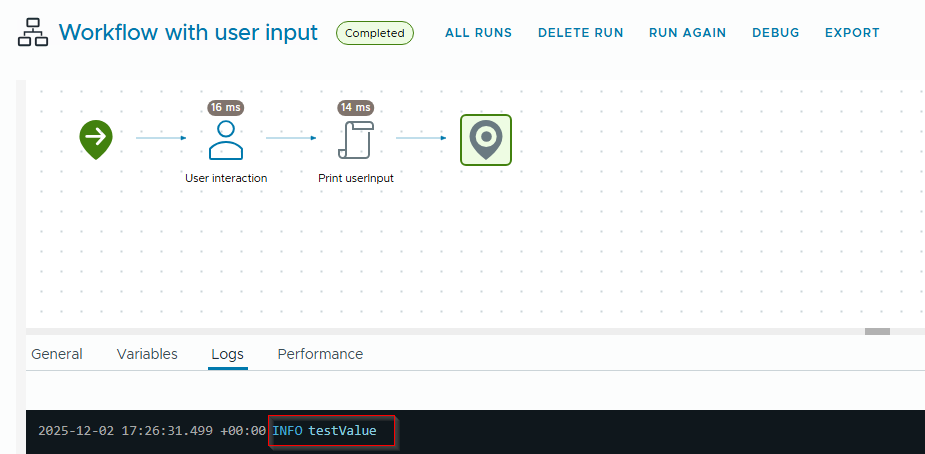
So, how to set it up. I am using a very basic and simple workflow with a User Interaction item and a Scriptable task that prints the input prided by the user in Aria Automation Service Broker Inbox request.
- Create a workflow and add User interaction and Scriptable task.
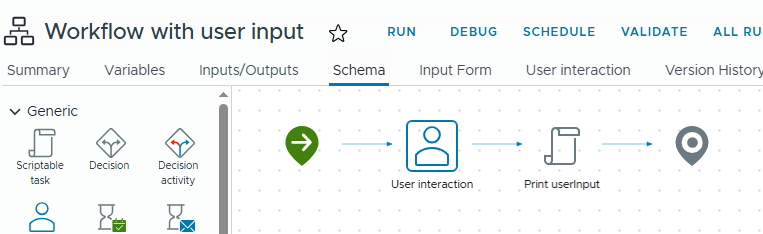
- Setup the user input variables (which will be presented in Inbox) and the approvers groups or users as well as timeout-date.

- In that Scriptable task, you bind that variable and print it.
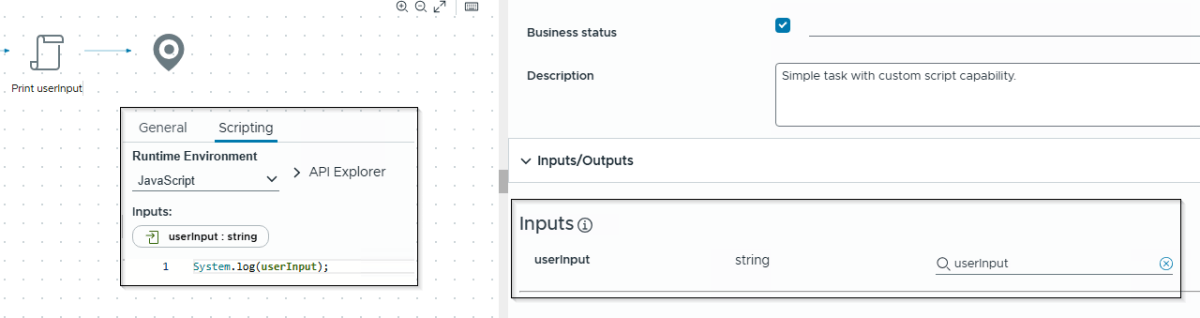
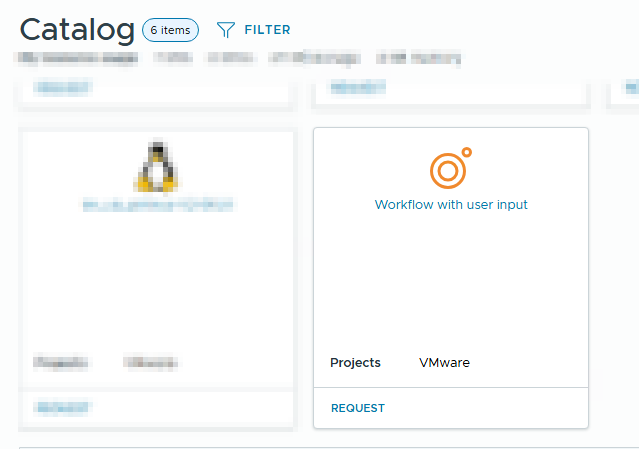
- Once done, release this workflow as a catalog item in Service Broker. If you want, have a look at official process to release workflow as a catalog item.
- Once the workflow is visible in the catalog item, request it and fill in the required details.
- Once the request is submitted and reached the step where it says Create – User Interaction Pending, go to the User Input Requests section in the Inbox.

- Look for the request and click Approve.

- Let the user interact with the form fields. Here, we are just simply asking to provide a string which will be used by the workflow to print it.
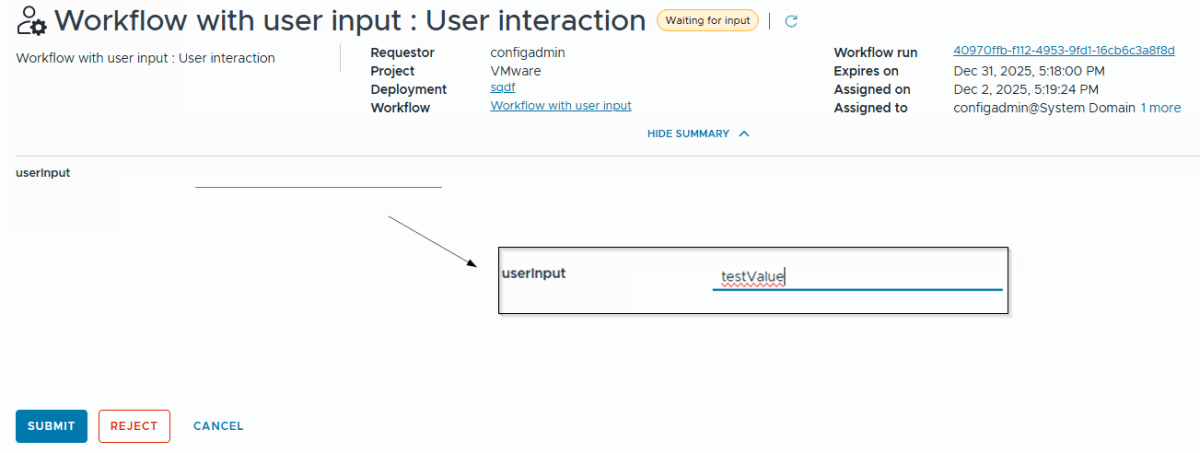
- Once the approver approves and fill the form correctly, the request will be marked as answered.
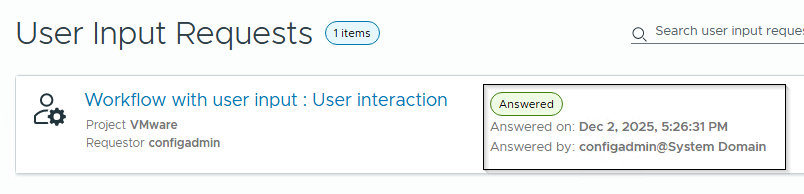
- In the backend XaaS workflow, we can see that workflow is able to process the user provide input and printed it in this case. You can obviously do calculations, corrections and change the course of workflow based on those inputs that are presented to the approver.
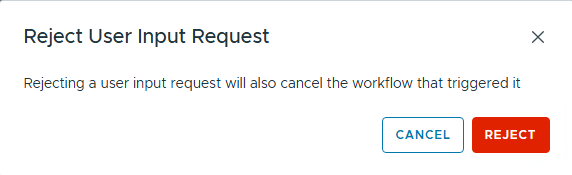
Note: If you select Reject on User input request, it will cancel the workflow.
Troubleshooting
You might see this error “Manual User Interactions without assignees are not allowed in vRA. The workflow run has been cancelled.” if you haven’t set the LDAP configuration properly in the Options section in the workflow.

Discover more from Cloud Blogger
Subscribe to get the latest posts sent to your email.





Hi Mayank,
It would be great if you could write a blog post about how users can receive an email.
Let me explain: the user enters the VAA portal, in Service Broker, Catalogue, and makes their VM request from there.
But it would be great if the user could receive an email notification when the deployment is complete, if it has failed and with what error, and if the user already has some deployments completed, to receive an email that the deployment has been successfully deleted.
I am working on creating multiple projects in the VAA portal, each with its own user groups and manager groups, each with the catalogue request.
The users are a mix of scientists and IT professionals, so we should offer users all these options and facilities.
That is why I am asking you how I can send this email notification to each user who makes the request. Unfortunately, in the VAA portal, in the Service Broker, Email Server, Notifications section, there are few options that cannot be changed in terms of when emails should be sent, so we need to think of another option/solution.
Could you help me with this?
Regards
Daniel