
In this article
Working with date and time is hard. There are so many formats, standards and ways to handle them. As an Orchestrator developer, you can’t avoid it: reports, REST calls, data fetching and talking to other systems all need dates. Ask any programmer about dates and time zones and they will share some war stories. It’s not rocket science, but it can be tedious and error-prone.
In this post, I’ll go through the key concepts for handling date and time values correctly in Orchestrator, the formats that work well for storing them and sending them over APIs, and plenty of ready-to-use snippets, all with the built-in classes.
If you send and receive data through a REST API, you will eventually need to convert dates to strings and back, because JSON has no native date type.
Tested on: VCF Operations Orchestrator 9.1.1 (Nov 2026). My lab server runs in UTC, so the outputs below are in GMT.
The Date() class
Orchestrator gives you the standard JavaScript Date class for almost everything around date and time. Its constructor takes a variety of inputs, and its methods let you reshape dates quickly. It does have a few quirks, though, so let’s look at it properly.

It starts here. Call the constructor, and you get the current date and time. 🚀
const currentDate = new Date();If you don’t pass anything to the Date constructor, the date object returned contains the current date and time.
You can then format it to extract only the date part as follows:
const currentDate = new Date();
const currentDayOfMonth = currentDate.getDate();
const currentMonth = currentDate.getMonth(); // Be careful! January is 0, not 1
const currentYear = currentDate.getFullYear();
const dateString = currentDayOfMonth + "-" + (currentMonth + 1) + "-" + currentYear;
System.log(dateString)
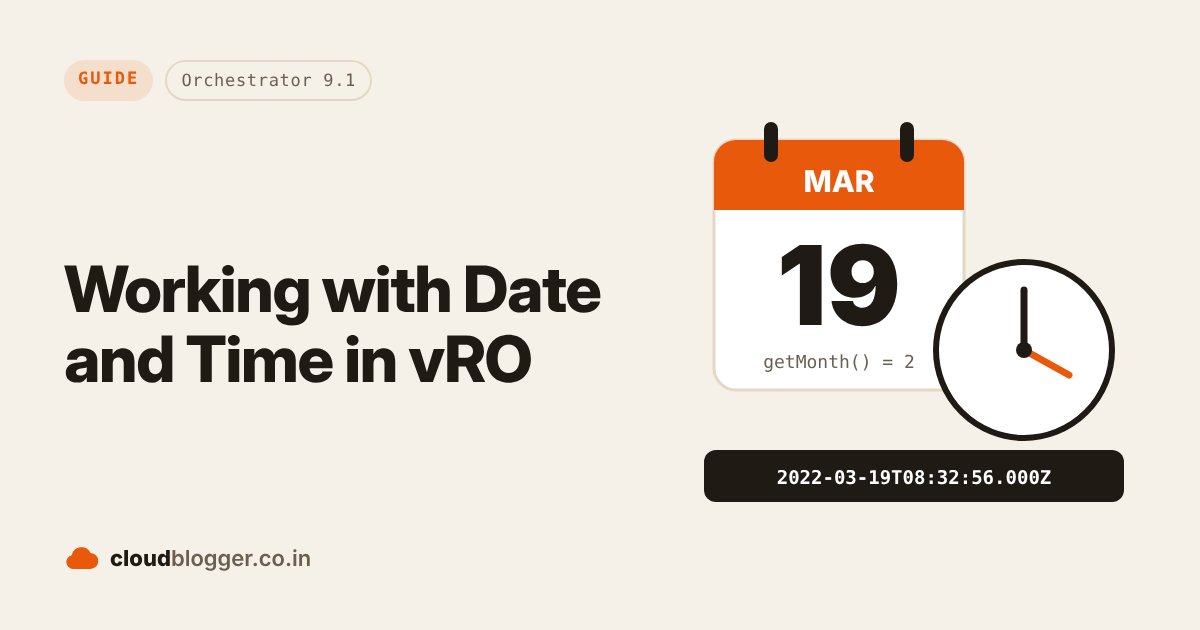
//Output = "19-03-2022"
Caution: use getFullYear(), not getYear().
If you want the current timestamp instead, create a new Date object and call getTime().
const currentDate = new Date();
const timestamp = currentDate.getTime();
System.log(timestamp); // 1647678776796
Note: in JavaScript, a timestamp is the number of milliseconds since January 1, 1970 (UTC), also known as the Unix or ECMAScript epoch.
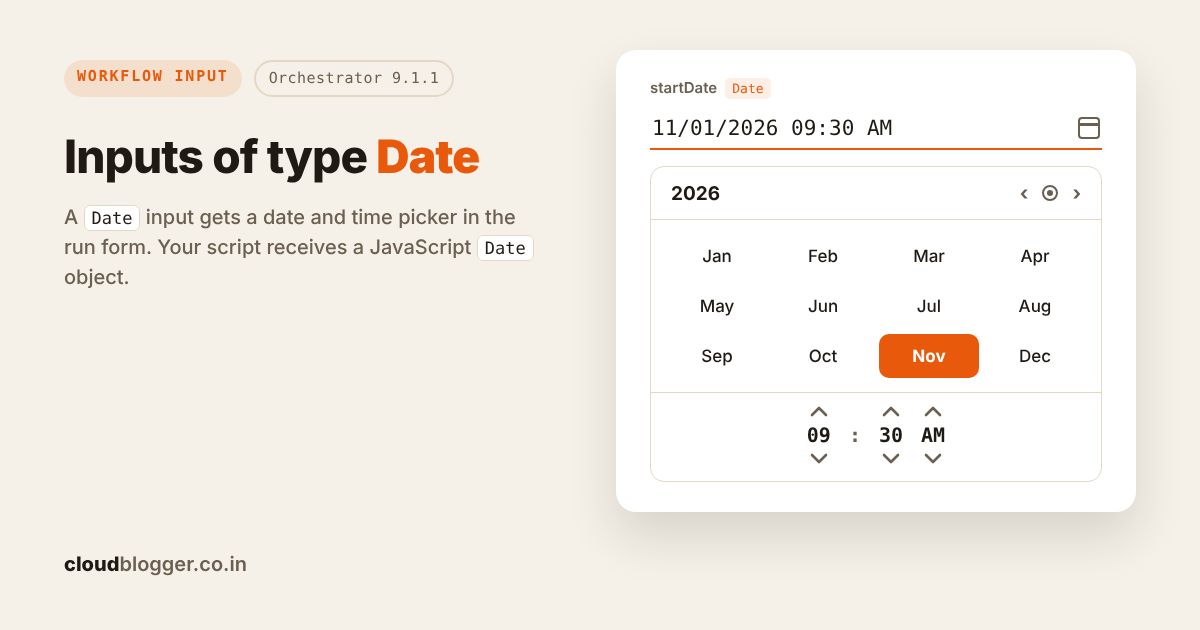
You can also take an input of type Date in a workflow or action and use it in your scripts like any other Date object.
Parsing a date
There are several ways to convert a string into a Date object.
The Date object’s constructor accepts a wide variety of date formats:
const date1 = new Date("Wed, 27 July 2022 13:30:00");
const date2 = new Date("Wed, 27 July 2022 07:45:00 UTC");
const date3 = new Date("27 July 2022 13:30:00 UTC+05:30");
You can also use Date.parse(), which returns the timestamp as a number:
var ms = Date.parse("27 July 2022 13:30:00 UTC+05:30");
System.log(ms); // 1658908800000
You don’t need to include the day of the week, because JavaScript works it out from the date.
You can also pass in the year, month, day, hours, minutes, and seconds as separate arguments:
const date = new Date(2022, 6, 27, 13, 30, 0);Or you can pass the epoch timestamp directly:
const date = new Date(1647678776796);So to get the zero timestamp, January 1, 1970 00:00 UTC, pass 0:
const date = new Date(0);You can also use System.getDateFromFormat() to convert a string with a known format into a Date object. See its API reference for details.
var d1 = System.getDateFromFormat("2019-01-01T01:45:00.100", "yyyy-MM-dd'T'HH:mm:ss.SSS");
System.log(d1);

var d2 = System.getDateFromFormat("20-Apr-2025 11:09:21", "dd-MMM-yyyy' 'HH:mm:ss");
System.log(d2)
Working with the ISO 8601 format
Of course, you can always use the ISO 8601 format, YYYY-MM-DDTHH:mm:ss.SSSZ:

var date = new Date("2022-07-27T07:45:00.000Z"); // Wed Jul 27 2022 07:45:00 GMT-0000 (GMT)Get the current date in full ISO format
We often need dates in the full ISO format for REST calls and the like. The toISOString() and toJSON() methods convert the date to UTC in that format.
var date = new Date(new Date().getTime() - (3 * 60 * 60 * 1000)); // 3 hours ago
System.log(date.toJSON()); // 2026-11-01T06:05:07.751Z
On 9.1.1, the Date() constructor accepts the common ISO 8601 variations: with or without milliseconds, with Z, or with an offset like +05:30. If you get a string in a custom format, use System.getDateFromFormat() as shown above.
If you know exactly which format you need, it’s best to extract the individual parts with the methods above and build the string yourself.
var currentDate = new Date();
var date = currentDate.getDate();
var month = currentDate.getMonth();
var year = currentDate.getFullYear();
We can get the date in MM/DD/YYYY format like this:
var monthDateYear = (month+1) + "/" + date + "/" + year;The problem is that the dates won’t always be the same length, because some months and days have one digit and others two. That’s a problem when you show dates in a table column, because they won’t line up.
We can fix this with a pad function that adds a leading 0:
function pad(n) {
    return n<10 ? '0'+n : n;
}
Now we get the correct date in MM/DD/YYYY format:
var mmddyyyy = pad(month + 1) + "/" + pad(date) + "/" + year;If we want DD-MM-YYYY instead, the process is similar:
var ddmmyyyy = pad(date) + "-" + pad(month + 1) + "-" + year;Let’s go further and print the date as “Month Date, Year”. We need a list of month names:
var monthNames = [
    "January", "February", "March", "April", "May", "June", "July", "August", "September", "October", "November", "December"
];
var dateWithFullMonthName = monthNames[month] + " " + pad(date) + ", " + year;
getDay() returns the day of the week from 0 (Sunday) to 6 (Saturday), so let’s add the day name too:
var daysOfWeek = ["Sun", "Mon", "Tue", "Wed", "Thu", "Fri", "Sat"];
// or
// var daysOfWeek = ["Sunday", "Monday", "Tuesday", "Wednesday", "Thursday", "Friday", "Saturday"];
var dateWithDayOfWeek = daysOfWeek[currentDate.getDay()] + ", " + dateWithFullMonthName;
Now that you know how to get parts out of a date and pad them, let’s build an ISO string from scratch. I needed +00:00 instead of Z:
function getCurrentDateInISOFormat() {
    // Desired format: 2016-06-14T00:00:00.000+00:00
    var date = new Date();
    System.log("Current date: " + date.toGMTString());
    var yyyy = date.getFullYear();
    var mm = (date.getMonth() + 1 < 10 ? "0" : "") + (date.getMonth() + 1);
    var dd = (date.getDate() < 10 ? "0" : "") + date.getDate();
    var HH = (date.getHours() < 10 ? "0" : "") + date.getHours();
    var MM = (date.getMinutes() < 10 ? "0" : "") + date.getMinutes();
    var SS = (date.getSeconds() < 10 ? "0" : "") + date.getSeconds();
    var ms = date.getMilliseconds();
    var milli = (ms < 10 ? "00" : ms < 100 ? "0" : "") + ms;
    var iso = yyyy + "-" + mm + "-" + dd + "T" + HH + ":" + MM + ":" + SS + "." + milli + "+00:00";
    System.log(iso);
    return iso;
}
Get the number of seconds since the epoch
var seconds = Math.floor(Date.now() / 1000);Working with past and future dates
The easiest way to calculate past and future dates is with epoch timestamps: the number of milliseconds since midnight, January 1, 1970 UTC. Let’s see a few examples.
Important: the largest possible date isn’t the same as the largest safe integer (Number.MAX_SAFE_INTEGER is 9,007,199,254,740,991). ECMA-262 defines that a Date can represent ±100,000,000 days relative to January 1, 1970 UTC (April 20, 271821 BCE to September 13, 275760 CE), which is ±8,640,000,000,000,000 milliseconds.
Get current time in milliseconds
// vRO System method
System.getCurrentTime() //1647861957381
//or
//Javascript method
Date.now() //1647861957381
//or
var date = new Date(); //allows any Date to be used
System.log(date.valueOf()); //1647861957381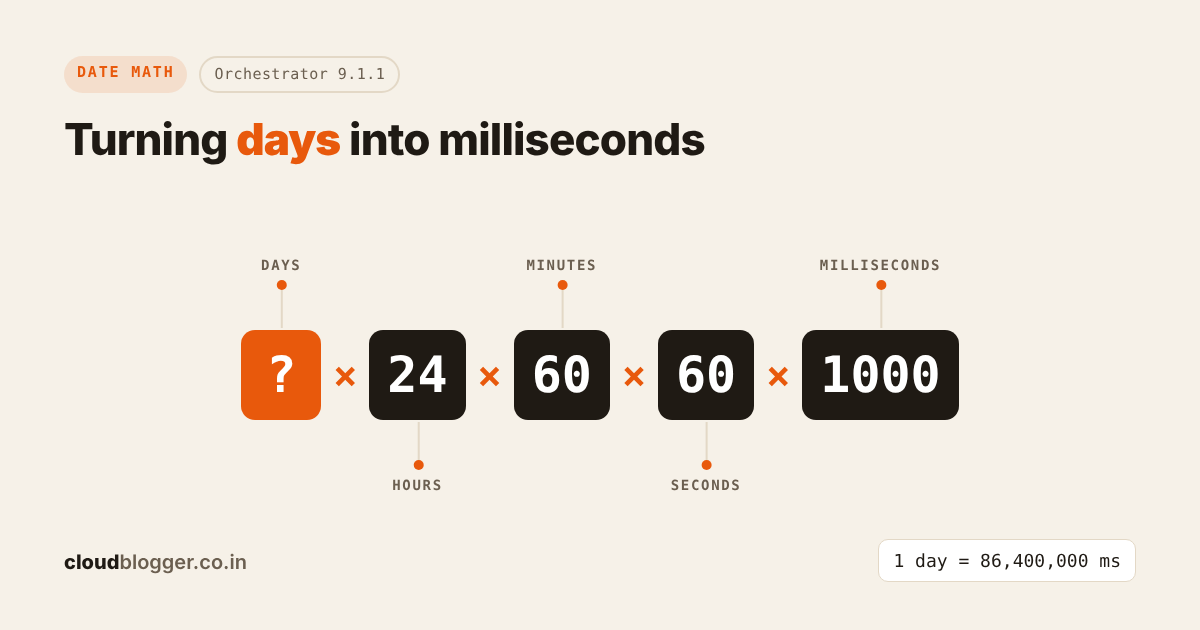
Let’s say you want the date 4 days from today. Take today’s timestamp and add 4 × 24 × 60 × 60 × 1000 milliseconds. You get a date exactly 4 days ahead, at the same time of day.
var date = new Date(); // Mon Mar 21 2022 11:42:06 GMT-0000 (GMT)
var frameOfTime = date.valueOf() + (4 * 24 * 60 * 60 * 1000);
var later = new Date(frameOfTime); // Fri Mar 25 2022 11:42:06 GMT-0000 (GMT)
To go back 4 hours instead, subtract 4 × 60 × 60 × 1000 milliseconds:
var date = new Date(); // Mon Mar 21 2022 11:42:06 GMT-0000 (GMT)
var frameOfTime = date.valueOf() - (4 * 60 * 60 * 1000);
var earlier = new Date(frameOfTime); // Mon Mar 21 2022 07:42:06 GMT-0000 (GMT)
Comparing dates
First, create the date objects. Luckily, <, >, <= and >= all work, so comparing two dates is easy:
const date1 = new Date("July 19, 2022");
const date2 = new Date("July 28, 2022");
if(date1 > date2) {
    System.log("First date is more recent");
} else {
    System.log("Second date is more recent");
}
Checking for equality is trickier. Two date objects with the same date are still two different objects, so == says they’re not equal. Comparing date strings is a bad idea too, because “July 20, 2022” and “20 July 2022” are the same date written differently. This snippet shows the first problem:
const date1 = new Date("June 10, 2003");
const date2 = new Date(date1);
const equalOrNot = date1 == date2 ? "equal" : "not equal";
System.log(equalOrNot);
This will output not equal.
You can fix it by comparing their timestamps instead:
date1.getTime() == date2.getTime();Time zones are another trap. The safest approach is to ignore the user’s time zone and create dates in UTC. There are two ways to do that:
- Build an ISO date string from the user’s input and create the
Dateobject from it. A valid ISO string makes it clear whether you mean UTC or local time.
const userEnteredDate = "12/20/1989";
const parts = userEnteredDate.split("/");
const userEnteredDateISO = parts[2] + "-" + parts[0] + "-" + parts[1];
const userEnteredDateObj = new Date(userEnteredDateISO + "T00:00:00.000Z");
const dateFromAPI = new Date("1989-12-20T00:00:00.000Z");
const result = userEnteredDateObj.getTime() == dateFromAPI.getTime(); // true
This also works without the time, which defaults to midnight UTC (00:00:00Z):
const userEnteredDate = new Date("1989-12-20");
const dateFromAPI = new Date("1989-12-20T00:00:00.000Z");
const result = userEnteredDate.getTime() == dateFromAPI.getTime(); // true
Remember: when you pass a date-only ISO string (YYYY-MM-DD) to the constructor, it’s treated as UTC.
- Use
Date.UTC()to get the UTC timestamp of a date. Extract the parts of the date and pass them to the function.
const userEnteredDate = new Date("12/20/1989");
const userEnteredDateTimeStamp = Date.UTC(userEnteredDate.getFullYear(), userEnteredDate.getMonth(), userEnteredDate.getDate(), 0, 0, 0);
const dateFromAPI = new Date("1989-12-20T00:00:00.000Z");
const result = userEnteredDateTimeStamp == dateFromAPI.getTime();
System.log(result); //true
Finding the difference between two dates
Another common task is finding the difference between two dates. Here are two examples.
Number of days between two dates
Convert both dates to UTC timestamps, find the difference in milliseconds, and convert it to days.
var dateFromAPI = "2022-02-10T00:00:00.000Z";
var now = new Date();
var dateFromAPITimeStamp = (new Date(dateFromAPI)).getTime();
var nowTimeStamp = now.getTime();
var msDiff = Math.abs(dateFromAPITimeStamp - nowTimeStamp);
// Math.round instead of Math.floor, to account for daylight saving changes
// Milliseconds per day = 24 hrs * 60 min * 60 s * 1000 ms
var daysDiff = Math.round(msDiff / (1000 * 60 * 60 * 24));
System.log(daysDiff);
Age from a date of birth
Note: this is a non-standard format. Check the API documentation to see whether it means October 12 or December 10, and convert it to ISO accordingly.
const birthDateFromAPI = "12/10/1989";
const parts = birthDateFromAPI.split("/");
const birthDateISO = parts[2] + "-" + parts[0] + "-" + parts[1];
const birthDate =  new Date(birthDateISO);
const today = new Date();
var age = today.getFullYear() - birthDate.getFullYear();
if(today.getMonth() < birthDate.getMonth()) {
    age--;
}
if(today.getMonth() == birthDate.getMonth() && today.getDate() < birthDate.getDate()) {
    age--;
}
Measuring how long a function takes
You can use the same idea to measure how long a function takes to run, which helps when you want to optimize it.
// To test a function and get back its return
function printElapsedTime(fTest) {
  var StartTime = Date.now(),
      vReturn = fTest(),
      EndTime = Date.now(),
      difference = EndTime-StartTime

  System.log("Elapsed time: "+difference+" milliseconds") //5001 milliseconds
  return vReturn
}

var yourFunctionReturn = printElapsedTime(sort)

function sort(){ // your function
    const array1 = [1, 30, 4, 21, 100000];
    array1.sort();
    System.log(array1);
    System.sleep(5000)
}
Built-in date formats
Date also has several methods that format the date for you. Here’s their output on 9.1.1:
var date = new Date(Date.UTC(2022, 2, 19, 8, 32, 56));
System.log(date.toString());           // Sat Mar 19 2022 08:32:56 GMT-0000 (GMT)
System.log(date.toDateString());       // Sat Mar 19 2022
System.log(date.toTimeString());       // 08:32:56 GMT-0000 (GMT)
System.log(date.toLocaleDateString()); // 3/19/22
System.log(date.toLocaleTimeString()); // 8:32 AM
System.log(date.toUTCString());        // Sat, 19 Mar 2022 08:32:56 GMT
System.log(date.toISOString());        // 2022-03-19T08:32:56.000Z
System.log(date.valueOf());            // 1647678776000
Quick recap
- Date and time in JavaScript are represented with the Date object. We can’t create “only date” or “only time”:
Dateobjects always carry both. - Months are counted from zero (yes, January is a zero month).
- Days of week in
getDay()are also counted from zero (that’s Sunday). - Dates can be subtracted, giving their difference in milliseconds. That’s because a
Datebecomes the timestamp when converted to a number. - Use
Date.now()to get the current timestamp fast.
Things to watch out for
- Don’t call
Date.UTC()without arguments. It returnsNaN, andnew Date(Date.UTC())is an Invalid Date. - No
Intlin Orchestrator.toLocaleDateString()and friends ignore locale options, so build custom formats yourself as shown above. - Check the server time zone. Local-time methods like
getHours()use the Orchestrator server’s time zone, so use the UTC methods or ISO strings when it matters.
Wrapping up
Dates will never be fun, but with timestamps, ISO strings and a few helper functions, Orchestrator handles them just fine. If you have a date trick of your own, feel free to share it in the comments. See you in the next post.
References
Discover more from Cloud Blogger
Subscribe to get the latest posts sent to your email.
Enjoyed this post?
Was this helpful?
2 responses to “Working with Date and Time in vRO 9.1.1”
-
Since vRO 8.8 there is a TimeZone object that should return the offset do you know how implement that?





























Leave a Reply