VMware Aria Automation Orchestrator is an automation and orchestration platform commonly used to automate VMware vSphere environments. The Morpheus Orchestrator integration enables organizations to take advantage of existing investments made in the development of Orchestrator workflows. This allows Orchestrator workflows to be used as part of Morpheus provisioning workflows, day 2 operations and operational workflows.
Technical Overview
The integration presents Orchestrator workflows as Morpheus tasks that can be then stitched together with other automation as part of a Morpheus workflow. The diagram below shows how a Orchestrator workflow is called as part of an instance provisioning workflow alongside a PowerShell script.

Integration Walk Through
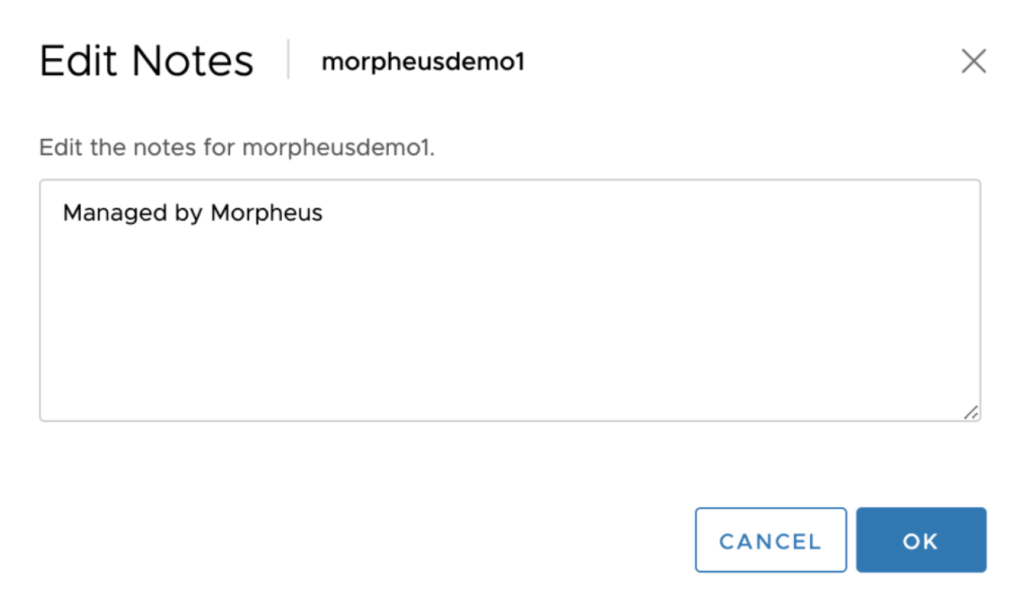
Now that we have an idea of how the integration works, we’ll dive into an example use case. We’ll look at triggering a vRO workflow during a vSphere VM provisioning operation. In this case we want to add custom notes or an annotation to the virtual machine that lets vSphere admins know the VM is managed by Morpheus.
Configure the Orchestrator Integration
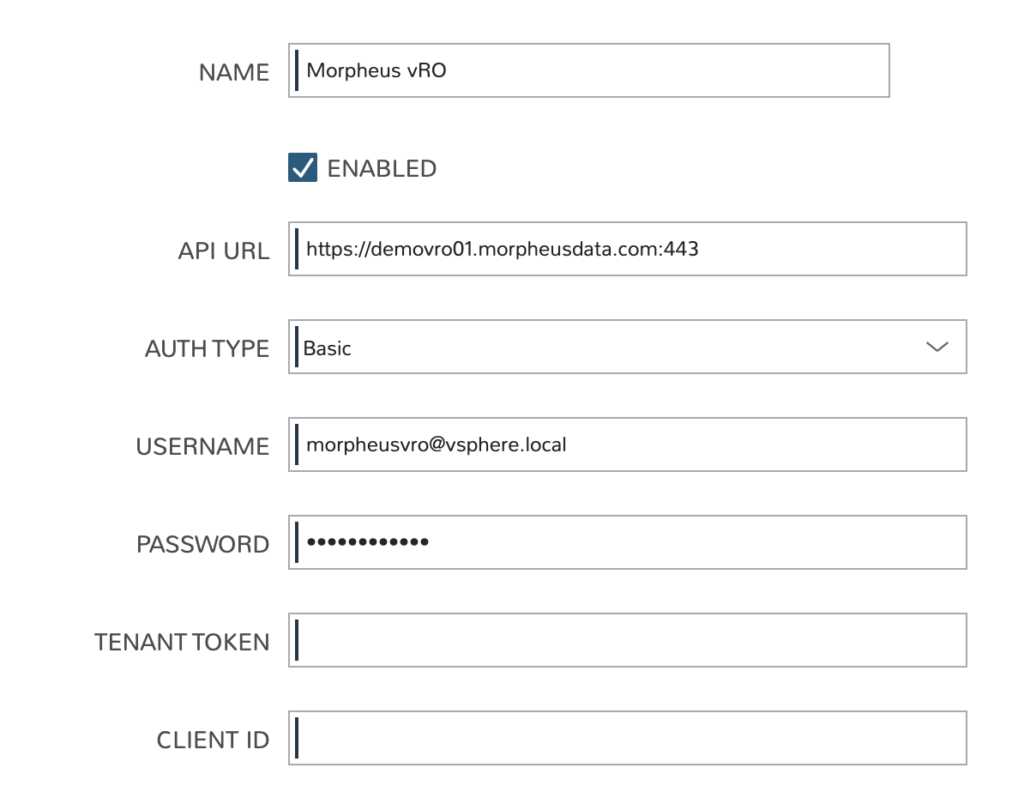
The first thing that we need to do is configure the Morpheus Orchestrator integration. The integration supports standalone and vRA embedded appliances. Specify the appropriate port (443) that the Orchestrator API endpoint is accessible over. Basic, Oauth 2.0 and vRA authentication methods are supported.
vRealize Orchestrator Workflow Schema
The Morpheus vRO integration triggers vRO workflows using the REST API endpoint and the vRO API requires a JSON payload containing the values of the input parameters for the workflow. In order to get the exact payload required for the workflow we’ll use a previous workflow execution.
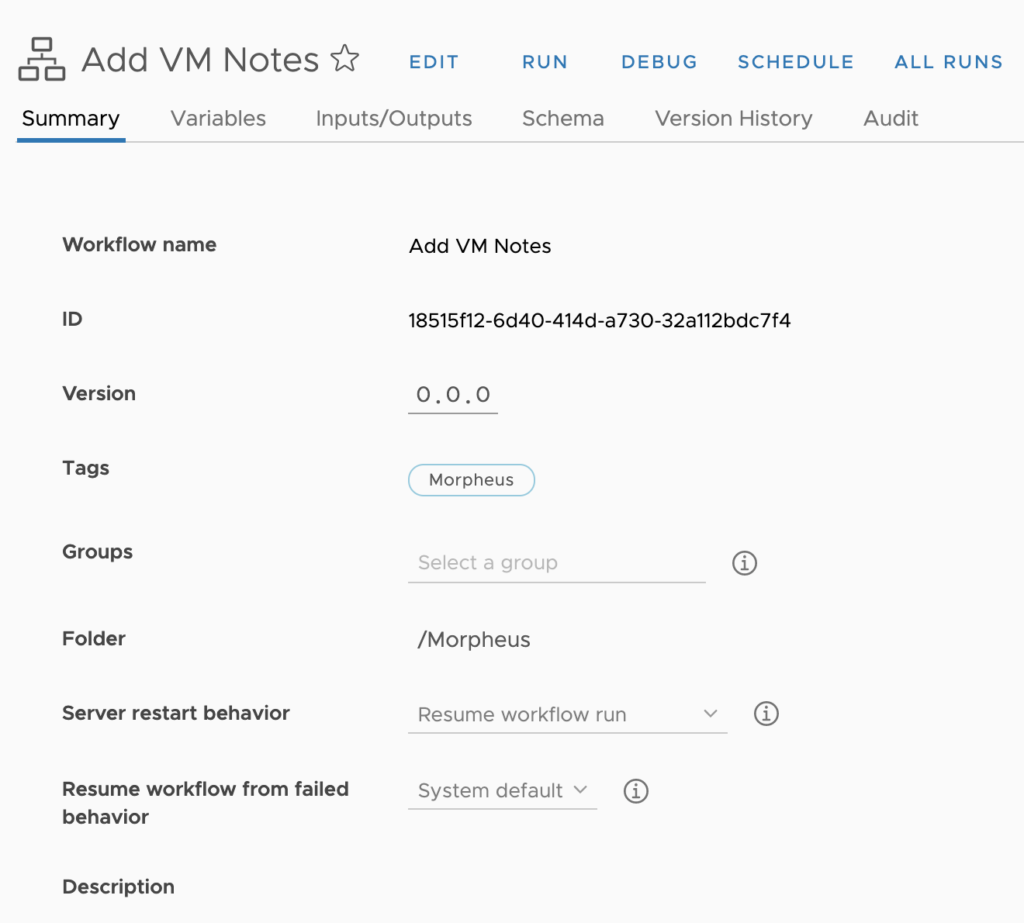
Workflow ID
The first piece of information we need is the ID of the workflow that we want to trigger. The ID number of a workflow can be found on the workflow’s summary tab in the vRO web interface.
Execution ID
The second piece of information that we need is the ID of a previous workflow execution. The ID number of a previous workflow execution can be found on the general tab of a previous workflow run in the Orchestrator web interface.

Retrieve JSON Input Schema
With the necessary pieces of information we are now able to craft the API endpoint needed to retrieve the input parameter schema needed by Morpheus.
https://vro_appliance_fqdn/vco/api/workflows/workflow_id/exeutions/execution_id
Using the details gathered from our example workflow we end up with the following URL to query the input parameters JSON schema.
https://demovro01.morpheusdata.com/vco/api/workflows/18515f12-6d40-414d-a730-32a112bdc7f4/executions/91c29c9d-4446-454d-bbf9-d3f1d8f2e3dd
The endpoint can be queried using CURL or Postman and the returned JSON payload should contain an input-parameters section which is exactly what we need for our Morpheus payload.
    "input-parameters": [
        {
            "value": {
                "string": {
                    "value": "demovm"
                }
            },
            "type": "string",
            "name": "vm_name",
            "scope": "local"
        },
        {
            "value": {
                "string": {
                    "value": "Testing Morpheus"
                }
            },
            "type": "string",
            "name": "notes",
            "scope": "local"
        }
    ],
Morpheus Task
We are now ready to create the Morpheus task that will be tied to the Orchestrator workflow. The Morpheus integration provides a drop-down to select the desired workflow but we need to create a JSON payload for the workflow parameters. We’ve taken the value of input-parameters returned by our Orchestrator API call and changed the key name to just parameters. The workflow accepts vm_name and notes parameters. We’ve specified the instance.name Morpheus variable as the vm_name parameter to dynamically pass the name of the instance during provisioning. The notes parameter has been hardcoded to “Managed by Morpheus” for simplicity. Additional instance variables can be passed as parameter values, variable details are found in the Morpheus variables documentation (https://docs.morpheusdata.com/en/latest/troubleshooting/Variables_Examples.html#common-examples).
{
  "parameters": [
    {
      "value": {
        "string": {
          "value": "<%=instance.name%>"
        }
      },
      "type": "string",
      "name": "vm_name",
      "scope": "local"
    },
    {
      "value": {
        "string": {
          "value": "Managed by Morpheus"
        }
      },
      "type": "string",
      "name": "notes",
      "scope": "local"
    }
  ]
}
We specify the Morpheus task name, the Orchestrator integration, the Orchestrator workflow and the JSON payload.

Morpheus Provisioning Workflow
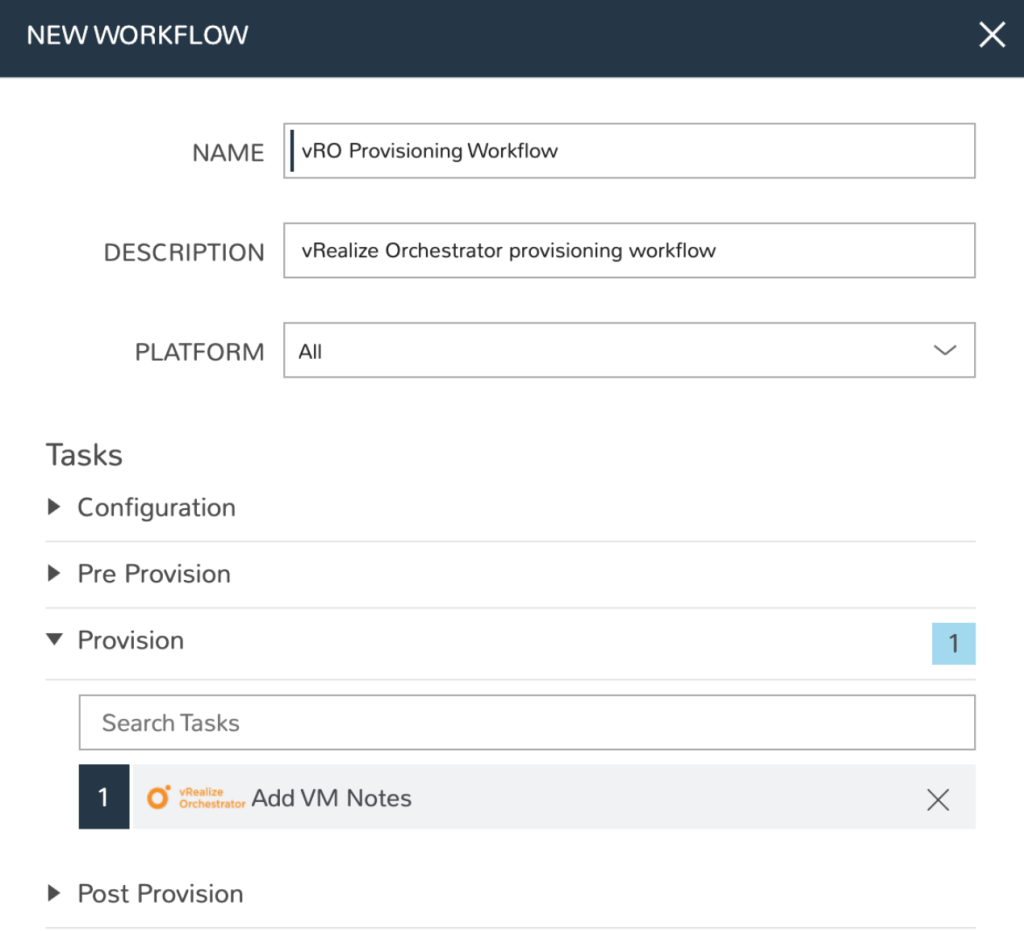
With our task created we’re now ready to add it to a Morpheus provisioning workflow. Similar to workflows in Orchestrator, Morpheus workflows allow us to stitch together separate tasks into an orchestrated operation. We’ll add the Add VM Notes task into our Morpheus provisioning workflow.
Provision Instance
With the Morpheus Workflow created, we’re ready to use the workflow during the provisioning of an instance. There are two options for assigning the workflow, statically to the instance or dynamically during provisioning. Workflow assignment is dynamic in this following example.

Once the virtual machine has been successfully provisioned we should be able to view the updated VM notes in the vSphere UI.
Conclusion
In this post, we walked through how the Morpheus Aria Automation Orchestrator integration works and how to configure it. We walked through an example of how to integrate Orchestrator as part of a Morpheus provisioning workflow. Orchestrator workflows can also be used as Morpheus operational workflows for XaaS as well as for virtual machine day 2 operations.
Note This article is copied from Morpheus vRealize Orchestrator Integration (morpheusdata.com) and provided here only for educational purposes.
Discover more from Cloud Blogger
Subscribe to get the latest posts sent to your email.