In this post, we will learn how to use pyvmomi Python module inside Orchestrator using Action Environments. We will also look at some of the advantages it brings over native JavaScript Plugin for vCenter and other components available as part of pyvmomi.
1. Technical Architecture & Strategic Advantages
Implementing Python Action Environments within VMware Cloud Foundation (VCF) Operations Orchestrator 9.x (formerly vRealize Orchestrator / Aria Automation Orchestrator) represents a major modern shift over the JavaScript vCenter Plugin setup. By moving away from heavyweight, stateful shared-memory models to isolated, container-native polyglot execution environments, cloud engineers can unlock more stability, flexibility and scalability.
Here is the complete list of fundamental differences, continuing with your points about transience and update cycles:
1. Transient and Stateless Execution
- pyVmomi Script is completely transient. It opens a raw HTTPS socket to the vSphere API, executes the required operations, handles data in-memory (memory limit can be increased easily if working with lot of objects), and immediately closes the session. There is no local inventory cache limit unlike vRO plugin.
2. Immediate, “Zero-Day” vSphere API Compatibility
- It has been observed that pyvmomi module gets much faster updates compared to vRO vCenter plugin.
3. Quick Bug resolution or Feature updates
- The pyVmomi open-source update cycle is drastically faster than the native vRO plugin, allowing you to bypass vendor bugs or unlock new vSphere features instantly by changing a version tag (e.g., via pip). With the legacy plugin, you are platform-locked and must wait for monolithic Engineering release cycles and infrastructure patches.
4. Dependency Management and Ecosystem Portability
- vRO Plugin: Locked into the capabilities of the JavaScript engine and the specific libraries VMware provides out of the box. You cannot easily import third-party modules into the native vRO scripting engine.
- pyVmomi Script: Allows you to pair vSphere API logic with the massive Python ecosystem inside the same runtime bundle. You can seamlessly pipe pyVmomi outputs into data-processing libraries (like pandas or numpy), text parsing utilities, or third-party REST clients within a single action.
5. Code Reusability and Independent CI/CD Testing
- vRO Plugin: Code written in vRO JavaScript is tightly coupled to the vRO platform. Testing requires logging into the vRO UI or running code inside a live vRO environment.
- pyVmomi Script: The script is just standard Python code. You can run, debug, and unit-test the exact same handler.py file locally on your laptop, inside a Git pipeline (CI/CD), or on a standard Linux server, and then upload it directly to vRO when it is ready.
6. Centralized Execution: Eliminating Workplace Drift
- By centralising dependencies into pre-configured vRO Action Environments, organizations completely eliminate “it works on my machine” syndrome and the need for tedious, manual workstation setups. It drastically accelerates developer onboarding by providing an instantly accessible, standardized workspace equipped with all required modules in the form of Orchestrator Action Environments.
2. Step-by-Step Implementation Guide
Step 1: Create the Custom Python Environment
- Log into your VCF Operations Orchestrator control panel.
- Using the left navigation pane, switch to Assets > Environments.
- Click the New Environment button at the top of the interface.
- Configure the environment properties with the following settings:
- Name: pyvmomi
- Runtime: Python 3.11 (or newer)
- Description: High-performance stateless execution engine leveraging pyVmomi 9.1.0.0 for deep guest inventory collection.

- Open your newly created pyvmomi object from the environment list.
- Locate the Definition tab.
- Add the precise version definition string to the dependency list:
- Name: pyvmomi
- Version: 9.1.0.0
- Repository: Default Public Repository
Note: You can refer to exact name and latest version by going to https://pypi.org/project/pyvmomi/
- Click Save.
- Monitor the download status on the Download Log tab.

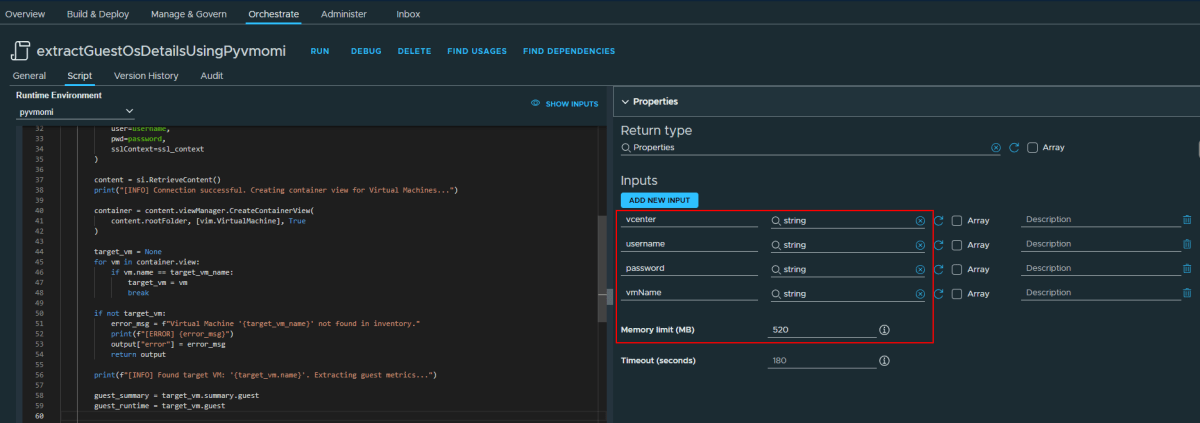
Step 2: Define Action Handler Parameters
- Navigate to Library > Actions and click New Action.
- Name the action extractGuestOsDetailsUsingPyvmomi.
- Locate the Runtime Environment dropdown menu in the action properties view and select pyvmomi.
- Switch to the Inputs tab on the left sidebar and explicitly map the following parameters:
• vcenter (Type: String)
• username (Type: String)
• password (Type: SecureString)
• vmName (Type: String)
Step 3: Implement the Transient Python Handler Code
- Paste the Python script into the inline script editor.
import ssl
from pyVim.connect import SmartConnect, Disconnect
from pyVmomi import vim

def handler(context, inputs):
    """
    vRO Entry Handler with active logging for Guest OS details.
    """
    # 1. Parse Inputs
    vcenter = inputs.get("vcenter")
    username = inputs.get("username")
    password = inputs.get("password")
    target_vm_name = inputs.get("vmName")

    print(f"[INFO] Starting Guest OS check for VM: '{target_vm_name}' on vCenter: '{vcenter}'")

    output = {
        "status": "failed",
        "error": None,
        "vmDetails": {}
    }

    ssl_context = ssl.create_default_context()
    ssl_context.check_hostname = False
    ssl_context.verify_mode = ssl.CERT_NONE

    si = None
    try:
        print("[INFO] Connecting to vCenter server...")
        si = SmartConnect(
            host=vcenter,
            user=username,
            pwd=password,
            sslContext=ssl_context
        )

        content = si.RetrieveContent()
        print("[INFO] Connection successful. Creating container view for Virtual Machines...")

        container = content.viewManager.CreateContainerView(
            content.rootFolder, [vim.VirtualMachine], True
        )

        target_vm = None
        for vm in container.view:
            if vm.name == target_vm_name:
                target_vm = vm
                break

        if not target_vm:
            error_msg = f"Virtual Machine '{target_vm_name}' not found in inventory."
            print(f"[ERROR] {error_msg}")
            output["error"] = error_msg
            return output

        print(f"[INFO] Found target VM: '{target_vm.name}'. Extracting guest metrics...")

        guest_summary = target_vm.summary.guest
        guest_runtime = target_vm.guest

        # Log high-level status directly to vRO log stream
        print(f"[INFO] VM Power State: {target_vm.runtime.powerState}")
        if guest_summary:
            print(f"[INFO] VMware Tools Status: {guest_summary.toolsStatus}")
            print(f"[INFO] Reported IP Address: {guest_summary.ipAddress}")
            print(f"[INFO] OS Full Name: {guest_summary.guestFullName}")

        output["vmDetails"] = {
            "vmName": target_vm.name,
            "powerState": str(target_vm.runtime.powerState),
            "guestId": guest_summary.guestId if guest_summary else None,
            "guestFullName": guest_summary.guestFullName if guest_summary else None,
            "ipAddress": guest_summary.ipAddress if guest_summary else None,
            "toolsStatus": str(guest_summary.toolsStatus) if guest_summary else None,
            "toolsVersionStatus": guest_runtime.toolsVersionStatus if guest_runtime else None,
            "hostName": guest_runtime.hostName if guest_runtime else None,
            "netStack": [
                {
                    "macAddress": nic.macAddress,
                    "ipAddress": list(nic.ipAddress)
                } for nic in (guest_runtime.net if guest_runtime and guest_runtime.net else [])
            ]
        }
        output["status"] = "success"
        print("[INFO] Execution finished successfully.")

    except Exception as e:
        print(f"[ERROR] Exception caught during run: {str(e)}")
        output["error"] = str(e)

    finally:
        if si:
            print("[INFO] Closing connection session with vCenter.")
            Disconnect(si)

    return output
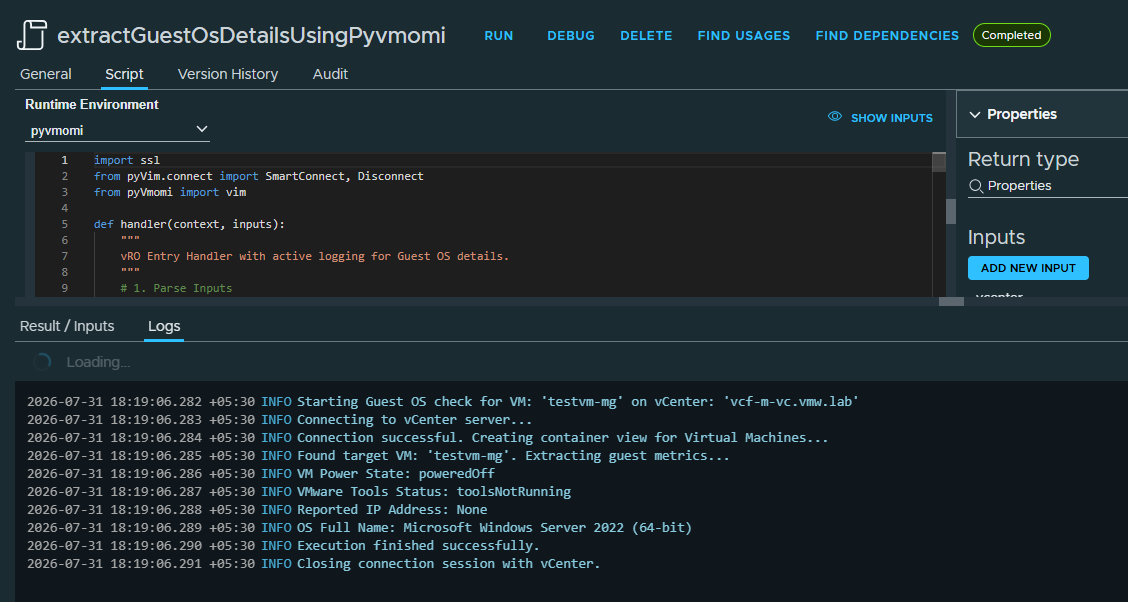
Step 4: Validate Script Performance and Execution Logs
- Click the Run button at the top toolbar of your Action editor window.
- Enter the runtime testing parameter payloads into the input prompts.
- Click Run and immediately click the Logs tab at the bottom interface panel.
- Verify that the tracking outputs confirm a stateless initialization, property execution, and clean connection destruction.

Discover more from Cloud Blogger
Subscribe to get the latest posts sent to your email.