

In this article
Sooner or later every VCF Automation demo needs a real application behind the VM, and WordPress is the one everybody recognises. So I built a cloud template that turns a plain Ubuntu 24.04 VM template into a working WordPress server with nothing but cloud-init: static IP, DNS, NTP, a login user, Apache, PHP, MariaDB and the latest WordPress, all configured on first boot. In this post I’ll walk through the template piece by piece, show the few things that tripped me up on the way, and share the full YAML at the end so you can import it and deploy your own.
Tested on: VCF Automation 9.1.1 (VM Apps organisation) with the embedded VCF Operations Orchestrator 9.1.1 (build 25643527), deploying to vSphere 9 with an Ubuntu 24.04 VM template that has cloud-init and open-vm-tools installed.
What the template does
One request gives you a single Ubuntu VM that comes up as a ready-to-use WordPress site. In order, on first boot, cloud-init:
- Creates a Linux login user with sudo and enables SSH password login
- Sets a static IP, gateway, DNS servers and search domain with netplan
- Points time sync at your NTP servers
- Installs Apache, PHP and MariaDB, creates the database with a password generated on the VM itself, downloads the latest WordPress and runs the installer with wp-cli
- Turns on pretty permalinks so the REST API under
/wp-json/works
Two passwords are requested as encrypted inputs: one for the OS user and one for the WordPress admin. The database password never leaves the VM. It’s written to /root/.wp-db-credentials with 0600 permissions.
Before you start
The template is meant to be copied into any project and run without first setting up image or flavor mappings. All it needs is:
- An Ubuntu 24.04 VM template in vCenter with cloud-init and open-vm-tools. The template refers to it by name through the
imageRefinput, so no image mapping is needed - CPU and memory are plain inputs (
cpuCountandmemoryGb), so no flavor mapping is needed either - A network with a capability tag such as
net:lab-vm-mgmt. The template picks the network through that tag - A free IP on that network, and DNS servers that can resolve public names: the VM downloads packages from the Ubuntu mirrors and WordPress from wordpress.org
The inputs
Everything you’d change between deployments is an input, with defaults for my lab:
| Input | Default | What it’s for |
|---|---|---|
vmName | lab-wordpress01 | vCenter VM name and guest hostname |
imageRef | https://cloud-images.ubuntu.com/releases/noble/release/ubuntu-24.04-server-cloudimg-amd64.ova | OVA template online. You can always use vCenter VM template (or content library item) to clone |
cpuCount, memoryGb | 2, 4 | VM size (2 vCPU / 4 GB is plenty for a test site) |
bootDiskGb | 40 | Boot disk size; can’t be smaller than the template’s disk |
networkTag | lab-vm-mgmt | Value of the net: capability tag on the target network |
ipAddress | (required) | Static IPv4 address for the VM |
prefixLength, gateway | 24, 10.20.44.1 | Subnet and default route |
dnsServers, dnsDomain | 10.20.44.11,10.20.44.12, vmw.lab | Name resolution and search domain |
ntpServers | 10.20.44.11,10.20.44.12 | Time sync; leave blank to keep the image default |
osUsername, osPassword | wpadmin, (encrypted) | Linux sudo user for SSH |
siteTitle, wpAdminUser, wpAdminEmail, wpAdminPassword | Lab WordPress, wpadmin, wpadmin@vmw.lab, (encrypted) | WordPress site and admin account |
How the cloud-init part works
The cloudConfig property does three things. It sets the hostname, it uses write_files to drop a few small scripts on the VM, and it runs those scripts in order from runcmd. Keeping the logic in separate scripts makes each step easy to read and easy to rerun by hand if something fails:
runcmd: - [ /usr/local/sbin/add-login-user.sh, "${input.osUsername}", "${input.osPassword}" ] - [ sh, -c, "systemctl restart ssh 2>/dev/null || systemctl restart sshd 2>/dev/null || true" ] - [ /usr/local/sbin/set-static-ip.sh ] - [ /usr/local/sbin/set-ntp.sh ] - [ /usr/local/sbin/install-wordpress.sh ] - [ sh, -c, "echo \"cloud-init done $(date)\" > /var/log/cloudinit-done.log" ]
The login user is created first on purpose. If a later step fails, for example because DNS isn’t working, you can still log in and look at the logs.
The input values reach the scripts through a small env file that cloud-init writes with 0600 permissions. The scripts read it with a one-line getv helper, and the WordPress installer deletes the file when it’s done, so the admin password doesn’t stay on disk:
- path: /root/wp-install.env permissions: '0600' content: | NET_IP=${input.ipAddress} NET_PREFIX=${input.prefixLength} NET_GW=${input.gateway} NET_DNS=${input.dnsServers} NET_DOMAIN=${input.dnsDomain} NTP_SERVERS=${input.ntpServers} WP_URL=http://${input.ipAddress} WP_TITLE=${input.siteTitle} WP_USER=${input.wpAdminUser} WP_EMAIL=${input.wpAdminEmail} WP_PASS=${input.wpAdminPassword}
Encrypted inputs used in cloudConfig are decrypted by VCF Automation before the VM gets them, so the scripts see the real values. I confirmed it by logging in to the finished site with the admin password I’d entered in the request.
Static IP with netplan
The network is attached as an existing vSphere network, and VCF Automation leaves the address to the guest. The set-static-ip.sh script turns off cloud-init’s own network handling so the setting survives a reboot, moves the image’s netplan files out of the way and writes a new one for the first NIC:
echo 'network: {config: disabled}' > /etc/cloud/cloud.cfg.d/99-disable-network-config.cfgmkdir -p /etc/netplan/backupfor F in /etc/netplan/*.yaml; do [ -e "$F" ] && mv "$F" /etc/netplan/backup/; donecat > /etc/netplan/60-static.yaml <<EOFnetwork: version: 2 ethernets: $NIC: dhcp4: false dhcp6: false addresses: [$IP/$PFX] routes: - to: default via: $GW nameservers: addresses: [$DNS] search: [$DOM]EOFchmod 600 /etc/netplan/60-static.yamlnetplan apply
After netplan apply, the script checks every 5 seconds whether archive.ubuntu.com resolves, for up to two minutes. Each lookup is capped with timeout 5, so a dead DNS server can’t stall the boot for long.
Watching the install from vCenter
The deployment shows as complete as soon as the VM is up, but the WordPress install takes a few more minutes inside the guest. To see how far it got without logging in, every step calls a tiny script that writes a line to /var/log/wordpress-install.log and also publishes it to a VM guestinfo variable through VMware Tools:
#!/bin/bash# Usage: wp-status.sh "<text>" - logs a step and publishes it to guestinfo.wp.statusecho "$(date '+%F %T') $1" >> /var/log/wordpress-install.logvmware-rpctool "info-set guestinfo.wp.status $1" >/dev/null 2>&1 || true
The value shows up in the VM’s advanced settings in vCenter, so anything that can read the VM can read the progress. This is the Orchestrator script I used to check it. It’s plain ES5, so it runs on 8.x and 9.x:
var vm = VcPlugin.getAllVirtualMachines(null, "xpath:matches(name,'lab-wordpress01.*')")[0];var status = null;var extraConfig = vm.config.extraConfig;for (var i = 0; i < extraConfig.length; i++) { if (extraConfig[i].key == "guestinfo.wp.status") { status = "" + extraConfig[i].value; }}System.log(vm.name + " (" + vm.guest.ipAddress + "): " + status);
Expected output once the install has finished:
lab-wordpress01-mcm1232-342952081630 (10.20.44.71): DONE WordPress ready at http://10.20.44.71 (REST API HTTP 200)
If a step fails, an error trap in the installer publishes FAILED at line <n> instead, and the details are in /var/log/wordpress-install.log on the VM.
Two gotchas in the template
VCF Automation reads %{ as an expression
WordPress needs an .htaccess file for pretty permalinks, and Apache rewrite rules are full of %{REQUEST_FILENAME}. Put that inside cloudConfig and the template stops validating:
Unable to compile expression ... syntax error mismatched input '%{' expecting <EOF>
VCF Automation treats %{ as the start of an expression, the same way it treats ${. The fix is to make sure the template never contains that pair of characters. The script keeps a percent sign in a shell variable and builds the rule from it when it runs:
P='%'cat > /var/www/html/.htaccess <<HTA# BEGIN WordPress<IfModule mod_rewrite.c>RewriteEngine OnRewriteBase /RewriteRule ^index\\.php$ - [L]RewriteCond $P{REQUEST_FILENAME} !-fRewriteCond $P{REQUEST_FILENAME} !-dRewriteRule . /index.php [L]</IfModule># END WordPressHTA
The same applies to curl -w '%{http_code}', which is why the template reads the status code from the response headers instead.
wp-cli doesn’t write .htaccess
wp rewrite structure '/%postname%/' --hard is supposed to write the rewrite rules for you, but from the command line wp-cli can’t tell that Apache has mod_rewrite loaded, so it quietly skips the file. The site’s home page works, but every other URL, including /wp-json/, returns Apache’s 404. Writing .htaccess yourself, as above, fixes it.
The deployment overview
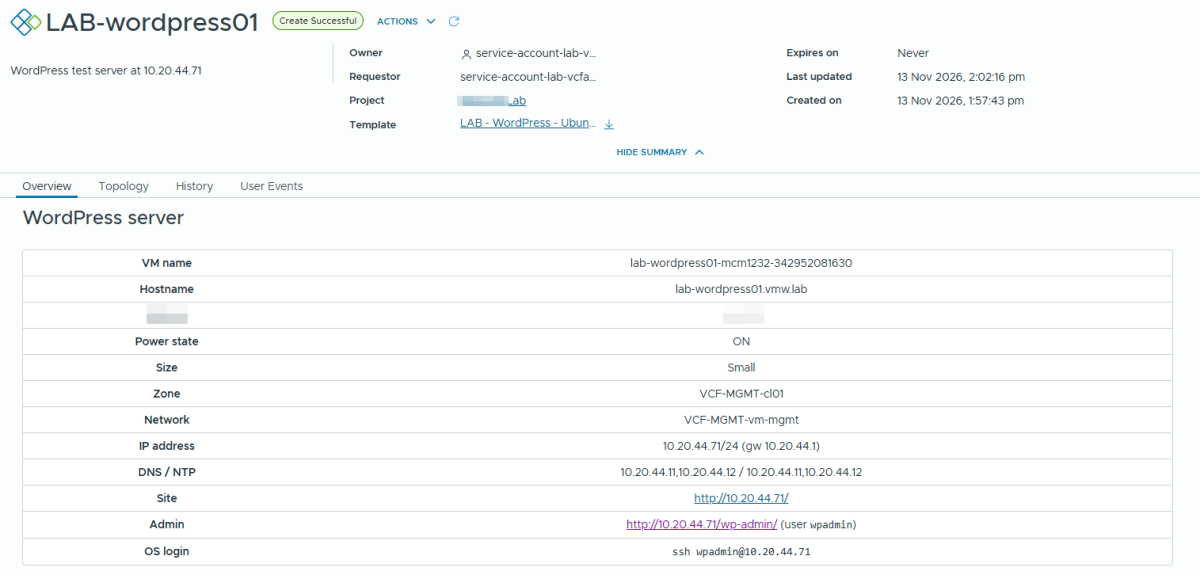
The template uses formatVersion: 2, which allows an outputs section. The special __deploymentOverview output is shown as Markdown on the deployment’s Overview tab, so whoever requested the VM gets everything they need in one place:
outputs: __deploymentOverview: value: | ### WordPress server <table> <tr><td><b>VM name</b></td><td>${resource.wpServer.resourceName}</td></tr> <tr><td><b>Hostname</b></td><td>${input.vmName}.${input.dnsDomain}</td></tr> <tr><td><b>Power state at deploy</b></td><td>${resource.wpServer.powerState}</td></tr> <tr><td><b>Size</b></td><td>${input.cpuCount} vCPU / ${input.memoryGb} GB</td></tr> <tr><td><b>IP address</b></td><td>${input.ipAddress}/${input.prefixLength} (gw ${input.gateway})</td></tr> <tr><td><b>Site</b></td><td><a href="http://${input.ipAddress}/" target="_blank">http://${input.ipAddress}/</a></td></tr> <tr><td><b>Admin</b></td><td><a href="http://${input.ipAddress}/wp-admin/" target="_blank">http://${input.ipAddress}/wp-admin/</a></td></tr> <tr><td><b>OS login</b></td><td><code>ssh ${input.osUsername}@${input.ipAddress}</code></td></tr> </table>
Two things to know about outputs. They’re calculated once, when the deployment is created or updated, so a value like power state is a snapshot from that moment and won’t follow later changes. And an expression that points at a property the resource doesn’t have, doesn’t fail validation; it just shows null. The full template below adds rows for the VM template, zone, network and DNS/NTP.
Testing it
Once guestinfo.wp.status says DONE, check the site from any machine that can reach the network. First the home page title:
curl -s http://10.20.44.71/ | grep -o "<title>.*</title>"
Expected output:
<title>Lab WordPress</title>
Then the REST API, which only works when permalinks are set up correctly:
curl -s -o /dev/null -w "%{http_code}\n" http://10.20.44.71/wp-json/
Expected output:
200
Browsing the WordPress site
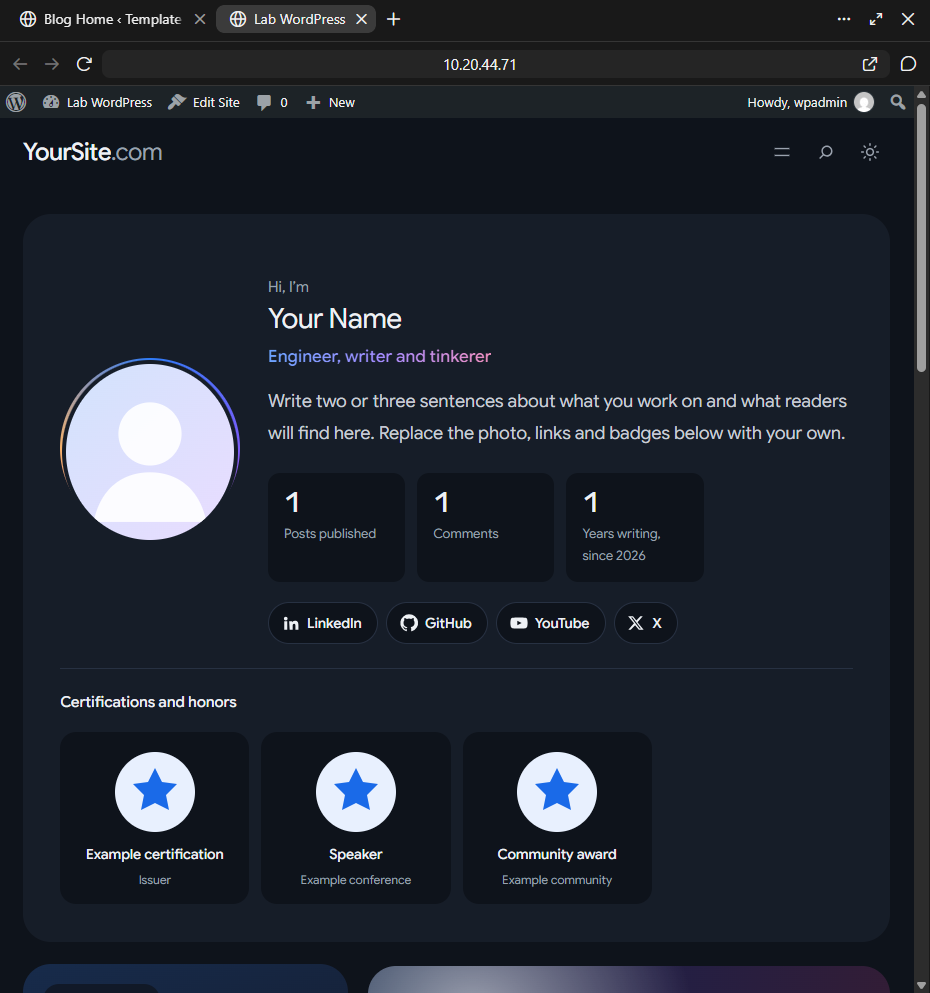
Finally, the site is accessible at http://<ip>.

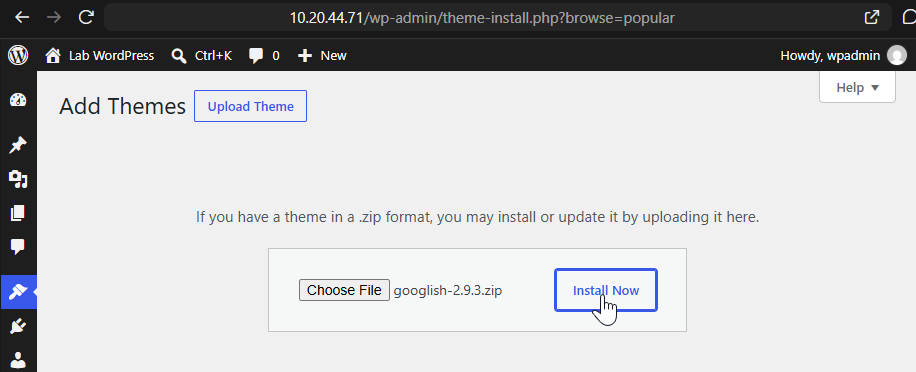
I pushed a WordPress theme Googlish that I created (currently applied to https://cloudblogger.co.in itself) from the admin page http://<ip>/wp-admin/ using the provided credentials while deploying the VM from VCFA and it worked just fine.
The complete template
Here’s the whole cloud template. Create a new template in your project, switch to the code view and paste it in. Because it uses imageRef, cpuCount and totalMemoryMB instead of mappings, the only things to check are the VM template name, the network tag and the input defaults for your network.
formatVersion: 2# LAB - WordPress - Ubuntu# Ubuntu 24.04 + Apache + PHP + MariaDB + latest WordPress, configured entirely by cloud-init.# Install progress is published to guestinfo.wp.status (vCenter, no guest login needed).outputs: __deploymentOverview: value: | ### WordPress server <table> <tr><td><b>VM name</b></td><td>${resource.wpServer.resourceName}</td></tr> <tr><td><b>Hostname</b></td><td>${input.vmName}.${input.dnsDomain}</td></tr> <tr><td><b>Template</b></td><td>${input.imageRef}</td></tr> <tr><td><b>Power state at deploy</b></td><td>${resource.wpServer.powerState}</td></tr> <tr><td><b>Size</b></td><td>${input.cpuCount} vCPU / ${input.memoryGb} GB</td></tr> <tr><td><b>Zone</b></td><td>${resource.wpServer.zone}</td></tr> <tr><td><b>Network</b></td><td>${resource.wpNetwork.resourceName}</td></tr> <tr><td><b>IP address</b></td><td>${input.ipAddress}/${input.prefixLength} (gw ${input.gateway})</td></tr> <tr><td><b>DNS / NTP</b></td><td>${input.dnsServers} / ${input.ntpServers}</td></tr> <tr><td><b>Site</b></td><td><a href="http://${input.ipAddress}/" target="_blank">http://${input.ipAddress}/</a></td></tr> <tr><td><b>Admin</b></td><td><a href="http://${input.ipAddress}/wp-admin/" target="_blank">http://${input.ipAddress}/wp-admin/</a> (user <code>${input.wpAdminUser}</code>)</td></tr> <tr><td><b>OS login</b></td><td><code>ssh ${input.osUsername}@${input.ipAddress}</code></td></tr> </table> Values are captured when the deployment is created or updated; check the Resources tab for live state. WordPress finishes installing a few minutes after the deployment completes. Progress: VM advanced setting <code>guestinfo.wp.status</code> or <code>/var/log/wordpress-install.log</code>. Database credentials: <code>/root/.wp-db-credentials</code>.inputs: vmName: type: string title: VM name description: vCenter VM name and guest hostname. Lowercase letters, digits and hyphens. pattern: '^[a-z0-9][a-z0-9-]{1,38}[a-z0-9]$' default: lab-wordpress01 imageRef: type: string title: VM template description: vCenter VM template (or content library item) to clone. Needs cloud-init and open-vm-tools. default: ubuntu24_template cpuCount: type: integer title: vCPUs minimum: 1 maximum: 16 default: 2 memoryGb: type: integer title: Memory (GB) minimum: 2 maximum: 64 default: 4 bootDiskGb: type: integer title: Boot disk size (GB) description: Must be at least the VM template disk size (40 GB for the Ubuntu 24.04 lab template). minimum: 40 maximum: 500 default: 40 networkTag: type: string title: Network description: Value of the net capability tag on the target network. oneOf: - title: VM Management (10.20.44.0/24, VLAN 404) const: lab-vm-mgmt default: lab-vm-mgmt ipAddress: type: string title: IP address description: Free static IPv4 address on the selected network. pattern: '^((25[0-5]|2[0-4][0-9]|1[0-9]{2}|[1-9]?[0-9])\.){3}(25[0-5]|2[0-4][0-9]|1[0-9]{2}|[1-9]?[0-9])$' prefixLength: type: integer title: Prefix length description: 24 = 255.255.255.0 minimum: 8 maximum: 30 default: 24 gateway: type: string title: Default gateway default: 10.20.44.1 dnsServers: type: string title: DNS servers description: Comma separated. default: 10.20.44.11,10.20.44.12 dnsDomain: type: string title: DNS domain default: vmw.lab ntpServers: type: string title: NTP servers description: Comma separated. Leave blank to keep the image default. default: 10.20.44.11,10.20.44.12 osUsername: type: string title: OS login user description: Linux sudo user created in the guest (SSH password login enabled). pattern: '^[a-z_][a-z0-9_-]{1,30}$' default: wpadmin osPassword: type: string title: OS login password encrypted: true minLength: 8 siteTitle: type: string title: WordPress site title default: Lab WordPress wpAdminUser: type: string title: WordPress admin user pattern: '^[A-Za-z0-9_.-]{3,30}$' default: wpadmin wpAdminEmail: type: string title: WordPress admin email format: email default: wpadmin@vmw.lab wpAdminPassword: type: string title: WordPress admin password encrypted: true minLength: 8resources: wpNetwork: type: Cloud.vSphere.Network metadata: layoutPosition: - 1 - 0 properties: networkType: existing constraints: - tag: '${"net:" + input.networkTag}' wpServer: type: Cloud.vSphere.Machine metadata: layoutPosition: - 0 - 0 properties: name: ${input.vmName} imageRef: https://cloud-images.ubuntu.com/releases/noble/release/ubuntu-24.04-server-cloudimg-amd64.ova cpuCount: ${input.cpuCount} totalMemoryMB: ${input.memoryGb * 1024} storage: bootDiskCapacityInGB: ${input.bootDiskGb} networks: - network: ${resource.wpNetwork.id} cpIpAddress: ${input.ipAddress} cpRole: wordpress # First boot, in order: 1) OS login user 2) static IP + DNS via netplan 3) NTP # 4) Apache + PHP + MariaDB + latest WordPress (wp-cli). DB password is generated in the guest # (/root/.wp-db-credentials, 0600). Progress is published to the VM's guestinfo.wp.status # variable (readable from vCenter without a guest login). Logs: /var/log/wordpress-install.log cloudConfig: | #cloud-config preserve_hostname: false hostname: ${input.vmName} fqdn: ${input.vmName}.${input.dnsDomain} manage_etc_hosts: true ssh_pwauth: true write_files: - path: /etc/ssh/sshd_config.d/01-password-auth.conf permissions: '0644' content: | PasswordAuthentication yes KbdInteractiveAuthentication yes - path: /root/wp-install.env permissions: '0600' content: | NET_IP=${input.ipAddress} NET_PREFIX=${input.prefixLength} NET_GW=${input.gateway} NET_DNS=${input.dnsServers} NET_DOMAIN=${input.dnsDomain} NTP_SERVERS=${input.ntpServers} WP_URL=http://${input.ipAddress} WP_TITLE=${input.siteTitle} WP_USER=${input.wpAdminUser} WP_EMAIL=${input.wpAdminEmail} WP_PASS=${input.wpAdminPassword} - path: /usr/local/sbin/wp-status.sh permissions: '0755' content: | #!/bin/bash # Usage: wp-status.sh "<text>" - logs a step and publishes it to guestinfo.wp.status echo "$(date '+%F %T') $1" >> /var/log/wordpress-install.log vmware-rpctool "info-set guestinfo.wp.status $1" >/dev/null 2>&1 || true - path: /usr/local/sbin/add-login-user.sh permissions: '0700' content: | #!/bin/bash # Usage: add-login-user.sh "<username>" "<password>" U="$1"; P="$2" if [ -z "$U" ]; then echo "add-login-user: no username given, skipped"; exit 0; fi id "$U" >/dev/null 2>&1 || useradd -m -s /bin/bash "$U" usermod -aG sudo "$U" if [ -n "$P" ]; then echo "$U:$P" | chpasswd; passwd -u "$U" >/dev/null 2>&1; fi /usr/local/sbin/wp-status.sh "1/5 login user $U ready" - path: /usr/local/sbin/set-static-ip.sh permissions: '0700' content: | #!/bin/bash # Applies a static IPv4 config (address, gateway, DNS, search domain) to the first NIC through netplan. ENVF=/root/wp-install.env getv() { grep "^$1=" "$ENVF" | head -n1 | cut -d= -f2-; } IP=$(getv NET_IP); PFX=$(getv NET_PREFIX); GW=$(getv NET_GW) DNS=$(getv NET_DNS | tr -d ' ' | sed 's/,/, /g'); DOM=$(getv NET_DOMAIN) NIC=$(ls /sys/class/net | grep -v '^lo$' | head -n1) echo 'network: {config: disabled}' > /etc/cloud/cloud.cfg.d/99-disable-network-config.cfg mkdir -p /etc/netplan/backup for F in /etc/netplan/*.yaml; do [ -e "$F" ] && mv "$F" /etc/netplan/backup/; done cat > /etc/netplan/60-static.yaml <<EOF network: version: 2 ethernets: $NIC: dhcp4: false dhcp6: false addresses: [$IP/$PFX] routes: - to: default via: $GW nameservers: addresses: [$DNS] search: [$DOM] EOF chmod 600 /etc/netplan/60-static.yaml netplan apply # Wait up to ~2 minutes for DNS; each lookup is capped at 5 seconds for i in $(seq 1 24); do if timeout 5 getent hosts archive.ubuntu.com >/dev/null; then /usr/local/sbin/wp-status.sh "2/5 network ready $NIC $IP/$PFX dns $DNS" exit 0 fi sleep 5 done /usr/local/sbin/wp-status.sh "2/5 WARNING $NIC $IP/$PFX set but DNS $DNS not resolving archive.ubuntu.com" - path: /usr/local/sbin/set-ntp.sh permissions: '0755' content: | #!/bin/bash # Points systemd-timesyncd at the NTP servers in the env file (comma separated) NTP_LIST=$(grep '^NTP_SERVERS=' /root/wp-install.env | cut -d= -f2- | tr ',;' ' ' | xargs) if [ -z "$NTP_LIST" ]; then exit 0; fi mkdir -p /etc/systemd/timesyncd.conf.d printf "[Time]\nNTP=%s\n" "$NTP_LIST" > /etc/systemd/timesyncd.conf.d/custom-ntp.conf timedatectl set-ntp true systemctl restart systemd-timesyncd /usr/local/sbin/wp-status.sh "3/5 ntp set to $NTP_LIST" - path: /usr/local/sbin/install-wordpress.sh permissions: '0700' content: | #!/bin/bash # Installs Apache, PHP, MariaDB and the latest WordPress, then runs the WordPress installer. set -eo pipefail exec >> /var/log/wordpress-install.log 2>&1 trap '/usr/local/sbin/wp-status.sh "FAILED at line $LINENO - see /var/log/wordpress-install.log"' ERR ENVF=/root/wp-install.env getv() { grep "^$1=" "$ENVF" | head -n1 | cut -d= -f2-; } WP_URL=$(getv WP_URL); WP_TITLE=$(getv WP_TITLE); WP_USER=$(getv WP_USER) WP_EMAIL=$(getv WP_EMAIL); WP_PASS=$(getv WP_PASS) case "$WP_PASS" in "((secret:"*) /usr/local/sbin/wp-status.sh "WARNING WordPress admin password reached the guest still encrypted";; esac /usr/local/sbin/wp-status.sh "4/5 installing packages" export DEBIAN_FRONTEND=noninteractive for i in $(seq 1 10); do timeout 300 apt-get update && break; echo "apt-get update retry $i"; sleep 15; done apt-get install -y apache2 mariadb-server php libapache2-mod-php php-mysql php-curl php-gd \ php-mbstring php-xml php-zip php-intl php-imagick curl unzip openssl systemctl enable --now apache2 mariadb # Database with a password generated in the guest if [ ! -f /root/.wp-db-credentials ]; then DB_PASS=$(openssl rand -base64 32 | tr -dc 'A-Za-z0-9' | cut -c1-24) printf 'DB_NAME=wordpress\nDB_USER=wpuser\nDB_PASS=%s\n' "$DB_PASS" > /root/.wp-db-credentials chmod 600 /root/.wp-db-credentials fi DB_PASS=$(grep '^DB_PASS=' /root/.wp-db-credentials | cut -d= -f2-) mysql -e "CREATE DATABASE IF NOT EXISTS wordpress DEFAULT CHARACTER SET utf8mb4 COLLATE utf8mb4_unicode_ci;" mysql -e "CREATE USER IF NOT EXISTS 'wpuser'@'localhost' IDENTIFIED BY '$DB_PASS';" mysql -e "ALTER USER 'wpuser'@'localhost' IDENTIFIED BY '$DB_PASS'; GRANT ALL PRIVILEGES ON wordpress.* TO 'wpuser'@'localhost'; FLUSH PRIVILEGES;" # WordPress files and wp-cli /usr/local/sbin/wp-status.sh "5/5 installing WordPress" curl -fsSL --retry 5 --max-time 300 https://wordpress.org/latest.tar.gz -o /tmp/wordpress.tar.gz rm -rf /tmp/wordpress && tar -xzf /tmp/wordpress.tar.gz -C /tmp rm -rf /var/www/html/* && cp -a /tmp/wordpress/. /var/www/html/ chown -R www-data:www-data /var/www/html curl -fsSL --retry 5 --max-time 300 https://raw.githubusercontent.com/wp-cli/builds/gh-pages/phar/wp-cli.phar -o /usr/local/bin/wp chmod +x /usr/local/bin/wp cd /var/www/html sudo -u www-data wp config create --dbname=wordpress --dbuser=wpuser --dbpass="$DB_PASS" --dbhost=localhost --skip-check --force if ! sudo -u www-data wp core is-installed 2>/dev/null; then sudo -u www-data wp core install --url="$WP_URL" --title="$WP_TITLE" --admin_user="$WP_USER" \ --admin_password="$WP_PASS" --admin_email="$WP_EMAIL" --skip-email fi # Pretty permalinks (wp-cli cannot detect mod_rewrite, so .htaccess is written here) printf '<Directory /var/www/html>\n AllowOverride All\n</Directory>\n' > /etc/apache2/conf-available/wordpress.conf a2enmod rewrite && a2enconf wordpress # P holds a percent sign so the template never contains a literal percent-brace (VCFA expression syntax) P='%' cat > /var/www/html/.htaccess <<HTA # BEGIN WordPress <IfModule mod_rewrite.c> RewriteEngine On RewriteBase / RewriteRule ^index\\.php$ - [L] RewriteCond $P{REQUEST_FILENAME} !-f RewriteCond $P{REQUEST_FILENAME} !-d RewriteRule . /index.php [L] </IfModule> # END WordPress HTA chown www-data:www-data /var/www/html/.htaccess sudo -u www-data wp rewrite structure '/%postname%/' sudo -u www-data wp rewrite flush systemctl restart apache2 API_CODE=$(curl -s -o /dev/null -D - http://localhost/wp-json/ | head -n1 | awk '{print $2}' || true) # Remove the install-time secrets file rm -f "$ENVF" /tmp/wordpress.tar.gz /usr/local/sbin/wp-status.sh "DONE WordPress ready at $WP_URL (REST API HTTP $API_CODE)" runcmd: - [ /usr/local/sbin/add-login-user.sh, "${input.osUsername}", "${input.osPassword}" ] - [ sh, -c, "systemctl restart ssh 2>/dev/null || systemctl restart sshd 2>/dev/null || true" ] - [ /usr/local/sbin/set-static-ip.sh ] - [ /usr/local/sbin/set-ntp.sh ] - [ /usr/local/sbin/install-wordpress.sh ] - [ sh, -c, "echo \"cloud-init done $(date)\" > /var/log/cloudinit-done.log" ]
Summary
- cloud-init alone is enough to turn a plain Ubuntu template into a repeatable WordPress server from VCF Automation
- Create the login user before anything that needs the network, so a failed boot is still easy to debug
- Check that your DNS servers really answer: a VM with an IP but no DNS looks fine until it tries to download something
- Never put
%{or${incloudConfigunless you mean a VCF Automation expression - Publishing progress to a guestinfo variable lets you follow an in-guest install from vCenter or Orchestrator, without logging in
If you deploy this in your own lab, let me know in the comments how it went, and which application you’d like to see as a template next.
Discover more from Cloud Blogger
Subscribe to get the latest posts sent to your email.
Enjoyed this post?
Was this helpful?















Leave a Reply