This article is an Orchestrator implementation of William Lam’s DataSets Community PowerShell module listed and presented in his blog here.
TL;DR Download this vRO package from box.com to get started with DataSets automation for Guest OS information passing in a secured way inside Orchestrator.
Why Use vSphere DataSets instead of guestinfo Advanced Configuration Parameters?
When automating virtual machines, there are many situations where an orchestration platform needs to pass information into the Guest Operating System.
A common VMware approach has traditionally been to use Advanced Configuration Parameters, particularly the guestinfo.* namespace. For example:
guestinfo.parms.token = MockToken_987654321
The Guest OS can then retrieve this information through VMware Tools. While this approach is simple and widely used, guest variables have historically had limitations around security as the values are exposed on the vSphere UI under Advanced Parameters in VM settings.
vSphere DataSets on the other hand is exposed via APIs that provides a dedicated VM metadata service. It was introduced with vSphere 8.0. A DataSet acts as a container for key/value entries that can be accessed independently from the vSphere management layer and from within the Guest OS. Other advantage is that it provides Data Persistence across VM Power Cycles.

Requirements for DataSets
To use DataSets, your vSphere Client environment must meet the following requirements:
- vCenter Server 8.0 or later.
- The ESXi host running in your environment must be at ESXi 8.0 or later.
- Virtual machines must be of hardware version 20 or later.
- A virtual machine supports maximum 1024 DataSets and each DataSet can have maximum 1024 entries.
- Each virtual machine can have a maximum of 100 MB DataSets data.
- Keys must be no larger than 4 KB and values no larger than 1 MB.
DataSets vs Advanced Parameters (guestinfo.*)
| Capability | Advanced Configuration / guestinfo.* | vSphere DataSets |
| Guest can retrieve data through VMware Tools | Yes | Yes |
| API Only feature | No | Yes |
| Guest read-only / read-write model | No dedicated DataSet access policy | Yes |
| UI visibility | Yes | No |
| Internal VM configuration reference | The value itself is stored in VM config | dataSetsMgr.* may reference backing store |
| Multiple independently controlled metadata containers per VM | Flat namespace | Yes |
| Preserves data during power cycles | No | Yes |
Why the DataSets Security Model Is Different
The most important benefit is not simply that the values are hidden from the UI. The stronger advantage is the dedicated access-control model.
A DataSet has separate access policies for the host/management layer and the Guest OS. The API supports NONE, READ_ONLY, and READ_WRITE access modes. This allows different DataSets on the same VM to have different access policies.
Host Access: READ_WRITE
Guest Access: READ_ONLY
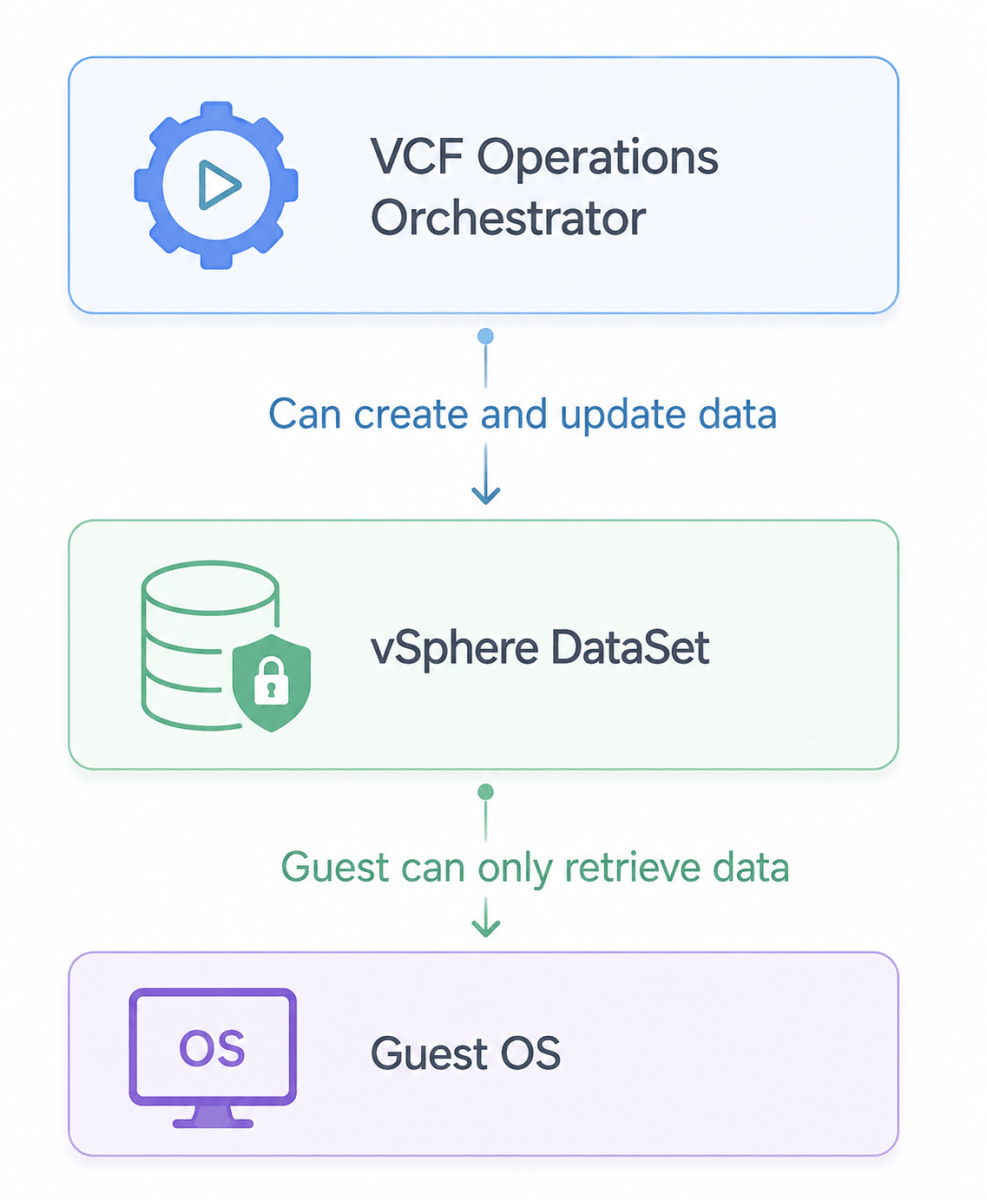
This is a significant improvement for automation workflows because the management plane can create or update a value while the Guest OS is restricted to consuming it.
What We Are Building
In this article, I demonstrate how to use VCF Operations Orchestrator, a PowerShell Action Environment, and William Lam’s VMware.Community.Datasets PowerCLI module to deliver a token to a Windows Guest OS.
- Connect to vCenter Server.
- Locate a target virtual machine.
- Check whether a vSphere DataSet already exists.
- Create the DataSet if required.
- Configure host and guest access controls.
- Create or update a token entry.
- Retrieve the token directly from inside the Windows Guest OS using VMware Tools.

Preparing the PowerShell Action Environment
Ensure that the PowerShell Action Environment contains the required PowerCLI components and the VMware.Community.Datasets community module.
VMware.Community.Datasets 1.0.0

PowerShell Action
Create a new action and map the runtime environment created earlier and paste the script provided below. Don’t forget to update the input values based on your environment.

function handler {

    # ============================================================
    # Update the hardcoded variables
    # ============================================================

    $vCenter  = "<vCenter-fqdn>"
    $username = "<vCenter-Username>"
    $password = "<vCenter-Password>"
    $vmName = "<vm-name>"

    # ============================================================
    # Dataset Configuration
    # ============================================================

    $datasetName  = "vRO-Token-Dataset"
    $datasetEntry = "token"
    $token  = "MockToken_987654321"

    $description = "Dataset containing token accessible from the Guest OS"

    # ============================================================
    # Initialize Connection Variables
    # ============================================================

    $viConnection  = $null
    $cisConnection = $null

    try {

        Set-PowerCLIConfiguration `
            -Scope User `
            -InvalidCertificateAction Ignore `
            -ParticipateInCEIP $false `
            -Confirm:$false | Out-Null

        Import-Module VMware.VimAutomation.Core -ErrorAction Stop
        Import-Module VMware.VimAutomation.Cis.Core -ErrorAction Stop
        Import-Module VMware.Community.Datasets -ErrorAction Stop

        Write-Host "Connecting to vCenter: $vCenter"

        $viConnection = Connect-VIServer `
            -Server $vCenter `
            -User $username `
            -Password $password `
            -ErrorAction Stop

        $cisConnection = Connect-CisServer `
            -Server $vCenter `
            -User $username `
            -Password $password `
            -ErrorAction Stop

        Write-Host "Looking for VM: $vmName"

        $vm = Get-VM `
            -Name $vmName `
            -Server $viConnection `
            -ErrorAction Stop

        if (-not $vm) {
            throw "Virtual Machine '$vmName' was not found."
        }

        $vmMoRef = $vm.ExtensionData.MoRef.Value

        Write-Host "VM found: $vmName"
        Write-Host "VM MoRef: $vmMoRef"

        Write-Host "Retrieving existing datasets from VM..."

        $allDatasets = @(Get-VMDataset `
            -VMMoRef $vmMoRef `
            -ErrorAction Stop)

        $existingDataset = $allDatasets |
            Where-Object {
                $_.Name -eq $datasetName
            }

        if (-not $existingDataset) {

            Write-Host "Dataset '$datasetName' does not exist."
            Write-Host "Creating dataset..."

            $datasetParams = @{
                Name                  = $datasetName
                Description           = $description
                VMMoRef               = $vmMoRef
                GuestAccess           = "READ_ONLY"
                HostAccess            = "READ_WRITE"
                OmitFromSnapshotClone = $true
            }

            New-VMDataset @datasetParams `
                -ErrorAction Stop

            Write-Host "Dataset '$datasetName' created successfully."
        }
        else {
            Write-Host "Dataset '$datasetName' already exists."
        }

        Write-Host "Creating/updating token entry '$datasetEntry'..."

        $datasetEntryParams = @{
            VMMoRef  = $vmMoRef
            Dataset  = $datasetName
            Name     = $datasetEntry
            Value    = $token
        }

        New-VMDatasetEntry `
            @datasetEntryParams `
            -ErrorAction Stop

        Write-Host "Token entry successfully created/updated."

        return @{
            success     = $true
            message     = "Dataset and guest-accessible token were successfully configured."
            vCenter     = $vCenter
            vmName      = $vmName
            vmMoRef     = $vmMoRef
            datasetName = $datasetName
            entryName   = $datasetEntry
        }
    }
    catch {
        Write-Host "ERROR: $($_.Exception.Message)"
        throw "Failed to create Dataset on VM '$vmName': $($_.Exception.Message)"
    }
    finally {
        if ($cisConnection) {
            Disconnect-CisServer `
                -Server $cisConnection `
                -Confirm:$false `
                -ErrorAction SilentlyContinue
        }

        if ($viConnection) {
            Disconnect-VIServer `
                -Server $viConnection `
                -Confirm:$false `
                -ErrorAction SilentlyContinue
        }
    }
}Step-by-Step Execution Flow
1. Connect to vCenter
The action establishes both a standard PowerCLI connection and a CIS connection. The standard connection is used to locate the VM, while the CIS connection is required by the DataSets community module to interact with the vSphere DataSets API.
Connect-VIServer
Connect-CisServer
2. Locate the Virtual Machine
$vm = Get-VM -Name $vmName
$vmMoRef = $vm.ExtensionData.MoRef.Value
For the test VM, the Managed Object Reference was vm-5510. The DataSets API operations are performed against the target VM.
3. Retrieve Existing DataSets
The script retrieves all DataSets associated with the VM and filters them locally:
$allDatasets = @(Get-VMDataset -VMMoRef $vmMoRef)
$existingDataset = $allDatasets |
Where-Object {
$_.Name -eq $datasetName
}
4. Create the DataSet
If the DataSet does not exist, it is created with host read/write access, guest read-only access, and exclusion from snapshots and clones:
GuestAccess = “READ_ONLY”
HostAccess = “READ_WRITE”
OmitFromSnapshotClone = $true
5. Create or Update the Token
$datasetEntryParams = @{
VMMoRef = $vmMoRef
Dataset = “vRO-Token-Dataset”
Name = “token”
Value = “MockToken_987654321”
}
New-VMDatasetEntry @datasetEntryParams
Reading the DataSet from the Windows Guest OS
The DataSet can be retrieved from inside the Windows Guest OS through VMware Tools and the vmtoolsd utility.
Open Command Prompt and navigate to the VMware Tools installation directory:
cd "C:\Program Files\VMware\VMware Tools"

vmtoolsd.exe --cmd "datasets-get-entry {\"keys\":[\"token\"],\"dataset\":\"vRO-Token-Dataset\"}"The response should look like this:

For Linux OSes, the process should be identical except changing the directory.
Other Guest OS commands
List all Datastores: vmtoolsd.exe --cmd "datasets-list"
The output should include vRO-Token-Dataset.

Check other commands here.
Note that DataSets Still Add an Internal Advanced Configuration Reference
As soon as a vSphere DataSet was created for the VM, an additional Advanced Configuration Parameter appeared:
dataSetsMgr.diskStoreFile = <vm-name>.dsd

The DataSets subsystem can add internal dataSetsMgr.* configuration references to point to its backing store. However, the individual DataSets names and entry values are not exposed as ordinary guestinfo.* Advanced Configuration Parameters.
DataSets feature relies on datastore files such as .dsd or .dsv files depending on vm mode or disk mode (read more) to store DataSets entries.
- .dsv – VM mode DataSets file. This file is not preserved during a snapshot and clone operations.
- .dsd – Disk mode DataSets file. This file is preserved during snapshots and clone operations.

Sequence Diagram of Orchestrator Process

References
- William Lam – vSphere Datasets: New Virtual Machine Metadata Service in vSphere 8
- Broadcom Developer – vCenter VM DataSets Create API
- Broadcom Developer – vCenter VM DataSets Update API
- Broadcom Developer – vCenter VM DataSets CreateSpec
- Broadcom Developer – vCenter VM DataSets Info
- Broadcom Knowledge Base – Fix dataSets store file corrupt or missing in a virtual machine (Article 313379)
- Broadcom Developer – vSphere Guest SDK
- PowerShell Gallery – VMware.Community.Datasets module
Discover more from Cloud Blogger
Subscribe to get the latest posts sent to your email.