

In this article
A quick note on the AI: I use Claude throughout this post, so wherever you read “Claude”, read “your AI assistant”. vcf-automation-mcp is a standard MCP server, so it works with any AI tool that supports MCP, such as Claude Desktop, VS Code with GitHub Copilot or Cursor.
Watch it in action
My vcf-orchestrator-mcp post ended with a promise: Orchestrator was the first step, and the VCF Automation side would come next. This is it. vcf-automation-mcp is an open-source MCP server that lets Claude work with VCF Automation 9 directly: catalog items and requests, deployments and day-2 actions, cloud templates, projects, ABX, extensibility subscriptions, IaaS, custom forms, approvals and org management, all through the VCF Automation REST APIs, from a chat.
It covers both kinds of organization in VCF Automation 9: VM Apps orgs and All Apps orgs. In this post I’ll show what it does, how to set it up in a few minutes with a service account, how to run a VM Apps org and an All Apps org side by side, and a few things I learned on the way.
Tested on: VCF Automation 9.1.1 with a VM Apps organization and an All Apps organization, vcf-automation-mcp 1.0.1, Claude Desktop on Windows 11.
One tool for every API operation
Most MCP servers pick a handful of operations and wrap each one as a tool. I went the other way. VCF Automation publishes an OpenAPI spec for each of its services under https://<vcfa>/tenant/<org>/api-docs, and vcf-automation-mcp turns every operation in those specs into its own tool. If the API can do it, Claude can do it.
| Org type | Tools | Services |
|---|---|---|
| VM Apps | 698 | ABX, approvals, deployment metrics, blueprint (cloud templates), catalog, deployment, policies, custom forms, content gateway, event broker, IaaS, identity, onboarding, Orchestrator gateway, projects, provider management (/cloudapi) |
| All Apps | 421 | Approvals, blueprint (cloud templates), catalog, deployment, policies, custom forms, content gateway, event broker, IaaS, Orchestrator gateway, projects, org management (/cloudapi) |
Tool names follow <service>_<operation>, for example catalog_get_catalog_items, blueprint_create_blueprint and vro_run_workflow in both org types, iaas_create_machine and abx_post_action_runs in a VM Apps org, or provider_query_regions in an All Apps org. Each tool carries the operation’s description, its parameters and its request body schema, so Claude knows what to send.
Two helper tools sit next to them:
vcfa_connection_statusshows the host, org, org type, login state and how many tools are loaded. Withtest: trueit logs in and makes a test call.vcfa_describe_operationreturns the full request body of any tool, at every nesting level. Tool inputs stop at three levels deep to keep the tool list small, so Claude uses this before a big create or update call.
A few details I cared about:
- Generated, not hand-written. When an API changes, I download the new spec and regenerate the tools. There is no per-tool code to keep up to date.
- OData parameters work.
$top,$filter,$selectand friends are passed astop,filterandselect, because MCP clients don’t accept$in argument names. The server puts the$back. - Self-signed lab certificates are supported with one setting.
VM Apps and All Apps orgs
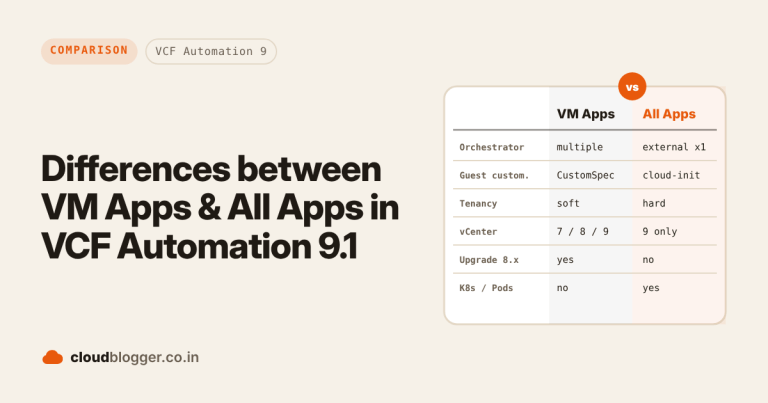
VCF Automation 9 has two kinds of organization, and they don’t offer the same APIs. A VM Apps org has the full set you know from Aria Automation: ABX, Identity, Onboarding and a large IaaS API with cloud accounts, zones, mappings, networks and machines. An All Apps org has no ABX, Identity or Onboarding API. Its IaaS API is small (integrations, configuration properties, the request tracker and certificates), and most of its infrastructure lives in the org management API under /cloudapi: regions, zones, namespaces, content libraries, VM classes, storage classes and infra policies.
So the server keeps one tool list per org type and loads the one that matches your org. It decides the org type in this order:
VCFA_ORG_TYPEin the config,vm-appsorall-apps- the org type that setup stored for that org
vm-apps
Each server entry in Claude Desktop is one org, with its own service account and its own login. To work with a VM Apps org and an All Apps org, you add two entries, and they run side by side without getting in each other’s way.
Getting started
Before you start
Check that you have these in place before step 1:
- VCF Automation 9.0 or later, reachable from the machine where you run the MCP server.
- Node.js 20.18 or newer, with npm. npm comes with Node.js. Run
node -vandnpm -vto check both. - The organization already created in VCF Automation, either a VM Apps org or an All Apps org. You need its name exactly as it appears in the tenant URL (
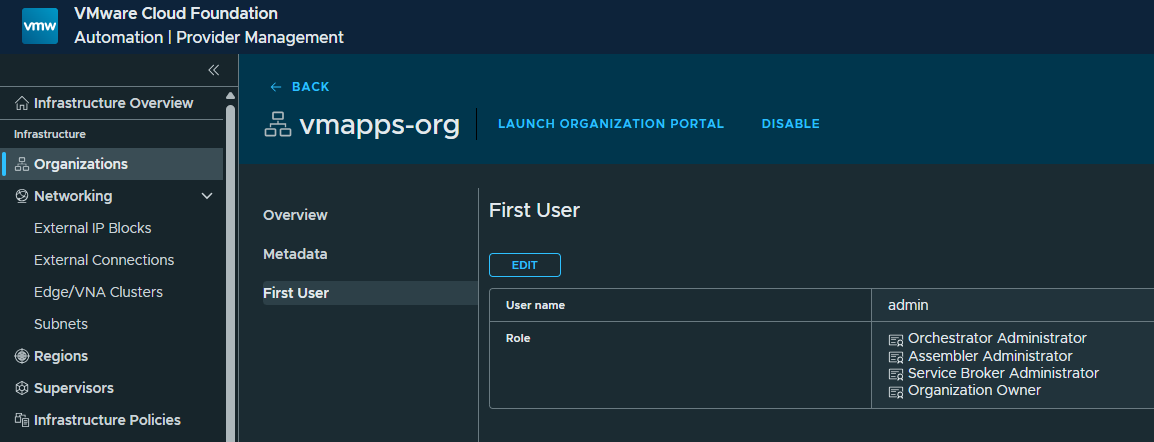
https://<vcfa>/tenant/<org>). - A local user in that organization with the right permissions. Use an org user with the Organization Administrator role, Service Broker Adminstartor, Orchesrator Administrator and Assembler Administrator. Don’t use provider admin credentials. Setup signs in as this user to create the service account and approve its access, and the service account gets the same roles as this user (except Auditor, Viewer and read-only roles). So this user’s roles decide what the MCP server can do in the org.
- Claude Desktop, or another MCP client.
1. Install
npm install -g vcf-automation-mcp2. Run the one-time setup
Setup works the same way as in vcf-orchestrator-mcp: it logs in once with your local user, creates a service account in the org, approves its access, and stores the service account’s refresh token on your machine. The five API calls behind it are explained in the vcf-orchestrator-mcp post. For a VM Apps org:
vcf-automation-mcp setup --url https://auto.example.lab --org vmapps-org --user admin --name LAB-VCFA-VMApps-MCP --insecureFor an All Apps org, add --org-type all-apps:
vcf-automation-mcp setup --url https://auto.example.lab --org allapps-org-01 --org-type all-apps --user admin --name LAB-VCFA-AllApps-MCP --insecureIt asks for the password with a masked prompt. The password is used once to log in and is never stored. What each option means:
--org: the organization name, the last part ofhttps://<host>/tenant/<name>. Not the display name, which can be different.--org-type:vm-apps(the default) orall-apps. It is stored with the token, so the Claude Desktop config doesn’t strictly need it.--user: a local user of that org with an admin role. You type it without@org.--name: the name of the service account that setup creates. You’ll find it later under Access Control > Service Accounts.--role: the roles the service account gets, comma-separated. Leave it out and the account gets the same roles as the user you log in with, minus read-only roles such as Organization Auditor.--insecure: accept a self-signed certificate. Drop it if your certificates are trusted.
At the end, setup checks which APIs the service account can reach and prints the config block for Claude Desktop. This is the check from the All Apps org in my lab:
API access check (403 = the service account role does not cover this API): OK Projects HTTP 200 OK RBAC auth context HTTP 200 OK IaaS integrations HTTP 200 OK Catalog HTTP 200 OK Deployment HTTP 200 OK Blueprint HTTP 200 OK Event Broker HTTP 200 OK Orchestrator Gateway HTTP 200 OK Org management (/cloudapi) HTTP 200 OK Regions (/cloudapi) HTTP 200
3. Add it to Claude Desktop
In the Claude Desktop version I used (November 2026), the MCP settings aren’t on the Settings page inside the chat window. Open Settings… from the app’s own menu instead (the Claude menu in the top menu bar on macOS, or the menu at the top left of the window on Windows), then go to Developer > Edit Config. This opens claude_desktop_config.json, which lives in %APPDATA%\Claude\ on Windows and ~/Library/Application Support/Claude/ on macOS. Add the block that setup printed. There’s no token or password in it. With a VM Apps org and an All Apps org, you end up with two entries:
{
  "mcpServers": {
    "vcfa-vmapps-org": {
      "command": "vcf-automation-mcp",
      "env": {
        "VCFA_HOST": "https://auto.example.lab",
        "VCFA_AUTH_MODE": "api-token",
        "VCFA_ORG": "vmapps-org",
        "VCFA_ORG_TYPE": "vm-apps",
        "VCFA_INSECURE": "true",
        "VCFA_SERVICES": "catalog,deployment,blueprint,project,abx,vro,eventbroker"
      }
    },
    "vcfa-allapps-org-01": {
      "command": "vcf-automation-mcp",
      "env": {
        "VCFA_HOST": "https://auto.example.lab",
        "VCFA_AUTH_MODE": "api-token",
        "VCFA_ORG": "allapps-org-01",
        "VCFA_ORG_TYPE": "all-apps",
        "VCFA_INSECURE": "true",
        "VCFA_SERVICES": "catalog,deployment,blueprint,project,vro,eventbroker,provider"
      }
    }
  }
}
Critical Fully quit Claude Desktop (from the system tray too) and open it again. On Windows, if Claude Desktop can’t find the command, run where.exe vcf-automation-mcp and put that full path in command.
Note: AI apps like Claude Desktop change their UI often. The steps above match Claude Desktop as of November 2026, so by the time you read this they may already be out of date. If something doesn’t match, check your app version (Help > About or Claude > About Claude) and look up the steps for that version in the app’s own help. The MCP guide for connecting local servers is a good place to start, but it can lag behind the app too. So far the config itself, the mcpServers block in claude_desktop_config.json, has stayed the same.
4. Check the connection
First check that Claude Desktop loaded both servers. Click the + button (Add files, connectors, and more) at the bottom left of the chat box, point to Connectors and click Manage connectors. Both vcfa-… entries should be listed, and clicking one shows its tools. If one is missing, the MCP logs are in %APPDATA%\Claude\logs on Windows and ~/Library/Logs/Claude on macOS (look for mcp-server-<name>.log).
Ask: “Using vcfa-allapps-org-01, run vcfa_connection_status with test true.”
In my lab, the All Apps entry reported org type all-apps (set by VCFA_ORG_TYPE), 410 of its 421 tools loaded (I used a longer VCFA_SERVICES list than the example), a login with the service account’s token, and a test call to GET /rbac-service/api/auth-context that returned HTTP 200. The VM Apps entry tests with GET /iaas/api/about instead, which also returned HTTP 200.
Using it day to day
Once it’s connected, you ask in plain words and Claude picks the tools. A few examples of what you can ask:
- “List the catalog items in the LAB project and show the inputs of the Docker host item.”
- “Show my failed deployments from the last week and the error of each one.”
- “Which cloud templates in vmapps-org have no released version?”
- “List the extensibility subscriptions on compute.provision.pre and the workflow each one runs.”
- “In allapps-org-01, list the regions, zones and namespaces.”
Keep the tool list small
Hundreds of tools is a lot for an AI client: some clients slow down, and some cap the number of tools. VCFA_SERVICES loads only the services you name. With catalog,deployment,blueprint,project,abx,vro,eventbroker, a VM Apps entry loads 184 of its 698 tools. VCFA_EXCLUDE_SERVICES and VCFA_TOOL_FILTER (a regex on tool names) trim it further. vcf-automation-mcp --list-services --org-type all-apps prints the services and their tool counts.
Read-only mode
Set VCFA_READ_ONLY to true and only the GET tools load. Write calls are also blocked when a tool is called, so nothing can change. That’s the setting I’d use in a customer environment where you only want to look around.
The login looks after itself
The server logs in with the service account’s refresh token and renews its access token before it expires. VCF Automation hands out a new refresh token on every renewal and the old one stops working, so the server saves each new one to ~/.vcf-automation-mcp/tokens.json before carrying on. That file is separate from vcf-orchestrator-mcp’s, so both MCPs can run at the same time, and each org has its own entry in it. Don’t copy the file to another machine: run setup there instead. To revoke access, delete the service account in VCF Automation.
Good to know
- Event Broker subscriptions. The Event Broker spec published for VCF Automation 9 has only two subscription operations: get one by ID, and delete. It can’t list or create subscriptions, although the UI does both. vcf-automation-mcp adds
eventbroker_list_subscriptionsandeventbroker_create_or_update_subscriptionfrom a small supplement spec, using the same endpoints as Aria Automation 8.x (GETandPOST /event-broker/api/subscriptions). Their tool descriptions say they’re outside the published spec, so try them in your lab first. - Orchestrator in an All Apps org. If Orchestrator isn’t enabled for the org, the
vro_*tools return 403 whatever roles the service account has. That’s the Orchestrator Gateway line in my check above: the org admin can’t see Orchestrator in the UI either. - The Event Broker line in the check. In 1.0.1, setup tested Event Broker against the subscription list endpoint, which isn’t in the published spec. From 1.0.2 it tests the documented
GET /event-broker/api/topicsinstead. - All Apps IaaS needs
apiVersion. The All Apps IaaS operations require theapiVersionparameter (2021-07-15in my lab). The tools mark it as required, so Claude sends it. - Read-only roles are left out. My All Apps admin has Organization Auditor, Organization Administrator and Encryption Management Admin. An early version of setup gave the service account only the first one, the read-only Auditor. Setup now copies the user’s roles without the read-only ones, so the service account can act as well as read.
- This is full access. Unless you turn on read-only mode, Claude can create, change and delete content. Start in a lab, and keep Claude Desktop’s tool approval prompts on, so you see each change before it happens.
Download from GitHub
The source, README and changelog are on GitHub, and the package is on npm. The repo also has the API specs the tools are generated from, one folder per org type.
Wrapping up
- Every VCF Automation 9 REST operation is a tool: 698 for a VM Apps org, 421 for an All Apps org
- A one-time setup creates a service account, and the login renews itself after that
- One Claude Desktop entry per org; VM Apps and All Apps orgs run side by side
VCFA_SERVICESkeeps the tool list small, andVCFA_READ_ONLYmakes it look-only
vcf-automation-mcp is free and open source. Give it a try in your lab, and if something doesn’t work or you’d like a change, open an issue on GitHub or leave a comment below.
Discover more from Cloud Blogger
Subscribe to get the latest posts sent to your email.
Enjoyed this post?
Was this helpful?
One response to “vcf-automation-mcp: Every VCF Automation 9 API as an AI Tool, for VM Apps and All Apps Orgs”
-
[…] T200 · vcf-automation-mcp: Every VCF Automation 9 API as an AI Tool, for VM Apps and All Apps Orgs […]











Leave a Reply